Three places to put a person in the loop
Human gates pause work, record the exact request, and resume only after a decision. Where the gate is declared determines its reach. An organization requirement always creates an approval; an agent-selected tool can instead ask the person in the conversation for a confirmation. These decisions have different answerers and deadlines. The three places to declare gates are below; an agent cannot remove an organization requirement.
| Layer | Set by | Reaches | Gates |
|---|---|---|---|
| Organization - Tool approvals on an integration | Organization admin | Every agent in the organization | Any tool, reads included |
| Agent - Approvals in the Setup | The agent's editors | This agent only | Any tool it holds |
| Flow - an approval gate or human task step | The flow's editors | That step of that flow | The work after the step |
Organization: require approval on a tool
Open an integration under Integrations, then Tool approvals in the Tools section. Switching Require approval on for a tool suspends every agent in the organization that calls it, on every call, until a person approves. The badge Approval required then follows the tool wherever it is listed.
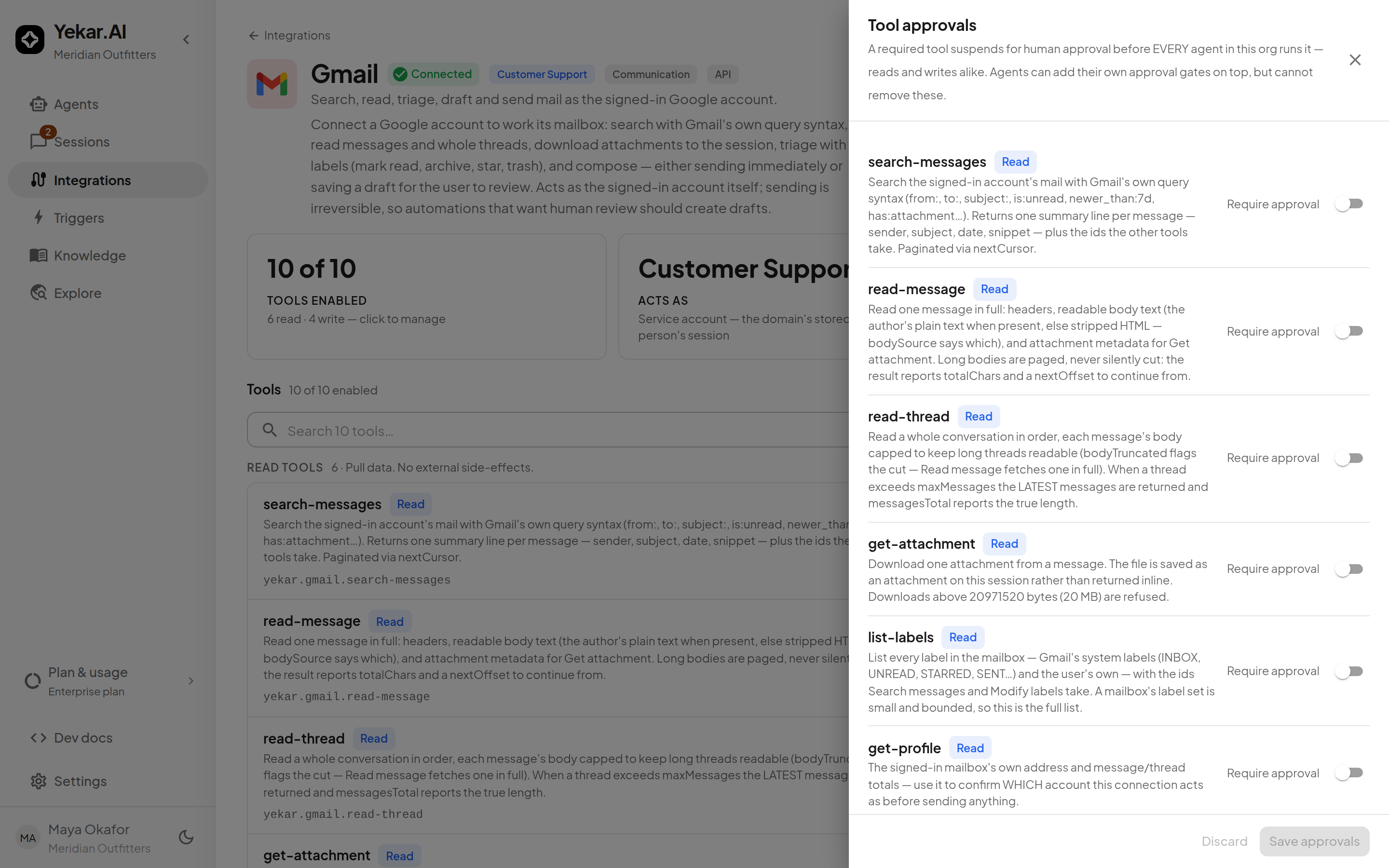
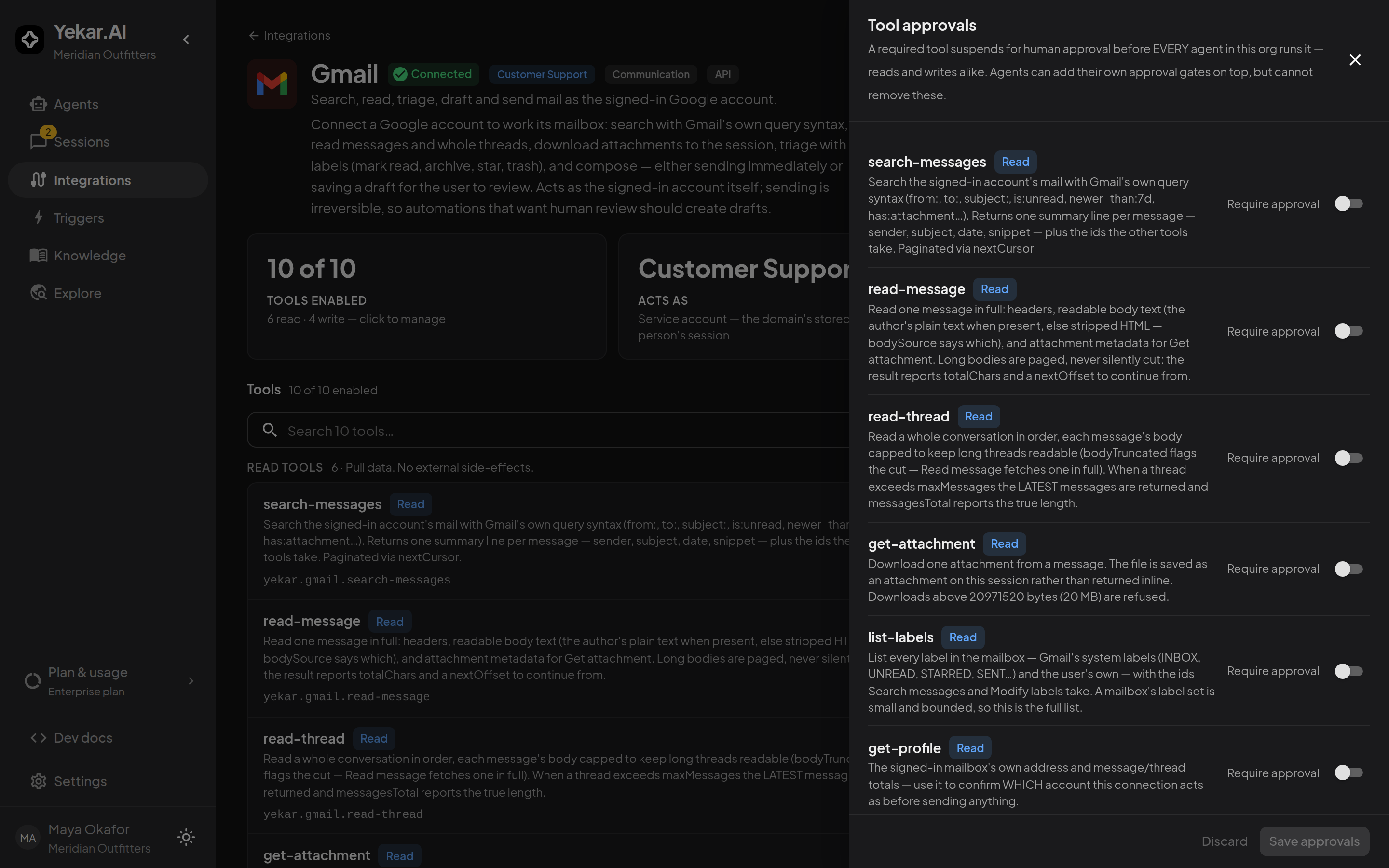
Both this layer and the agent layer can gate a read. A read cannot change the external system, but a query shaped to pull out everything it can reach is still worth a look. What makes this layer distinct is reach and removability, not which tools it covers: it is the only one an agent's author cannot loosen. The Setup's own list is unioned with the organization's, and the agent's Approvals drawer shows the organization-mandated tools as a fixed line above the ones the author can choose.
It applies to agent turns. A flow's tool steps are governed by the flow's own gates, not by this switch.
More than one approver
Beside Require approval, Approvers needed sets how many different people must approve each call - up to five. With two or more, the call waits until that many people have approved it; any one of them can reject it, which stops it at once, and the same person never counts twice. Each approval is recorded in the audit log as it arrives, and the final one lists every approver. The tool's badge then reads, for example, 2 approvers required.
- Approvers are whoever the domain's approval policy admits, exactly as for a single approver.
- When the call uses one person's own credentials, that person must be one of the approvers; the others come from the domain's approvers.
- Agent confirmations stay a single answer from the person who asked - which that person may give in advance, see Stop asking in this conversation - and an agent or flow that calls this one cannot stand in for one of the approvers. In a conversation with stakeholders, their sign-off is needed as well, on approvals and confirmations alike, and never replaces that answer.
- The number is fixed when the call pauses: changing it later applies to new pauses, not to ones already waiting.
This setting covers agent turns only. A flow's approval gate is decided by one qualifying person; to require two sign-offs in a flow, place two approval gates in sequence.
Agent: gate a tool
Under Setup → Settings → Approvals, domain Editors and Owners pick which of an agent's tools pause for a decision. The list offers every tool the agent reaches, reads and writes alike, grouped by integration and badged Read or Write per row. Gating a read also stops that call running in parallel with its neighbours, which is the only cost the badge is there to tell you about.
In an attended conversation, a selected tool asks the person who initiated that turn for confirmation, provided it uses their own credentials or the domain's credentials. Only that person can answer, including a Viewer; other session participants cannot answer on their behalf. Stakeholders sign off in addition; they never answer for the person who asked. The confirmation itself stays in the conversation and never enters the Approvals inbox - a stakeholder's sign-off on it does.
For unattended work, a call that would use someone else's sign-in, or a tool the organization requires to be approved, the pause is an approval, routed by the credentials the call would use. A call on one person's own sign-in goes to that person as a Your credentials approval; a call on the domain's credentials goes to the domain's approvers. So a call that would use a colleague's sign-in is never a confirmation for the person in the conversation: it waits for the colleague, and the card says why. An organization requirement always takes precedence over the agent's confirmation setting.


Four settings live in the same drawer.
- How long a pause waits - one field per class, because the people waiting are different. In a chat defaults to 4 hours, with approvers to 72. Setting one never moves the other. The floor is a minute and the ceiling thirty days. Expiry fails the turn rather than running the call without a decision.
- Before a pause expires - an optional reminder, sent once, a number of hours before the deadline, to the audience you pick: the people who can decide it, the domain's owners, the organization's owners and admins, or any combination. Who those people are is worked out when the reminder is sent, so it never reaches somebody who could not decide. It does not extend the deadline or add a decider - on expiry the turn still fails. A confirmation in a chat reminds only the person who was asked, plus any stakeholder who has not signed off yet. The reminder must be shorter than the with approvers window, and a pause whose whole window is shorter than the reminder gets none.
- Skip the pause when a condition holds - shown under each gated tool. Name one argument of the call (such as
amount, orrefund.amountfor a nested one), a comparison and a value, and calls that meet it run without pausing - for example, refunds under 200. Calls that miss it, or whose argument is missing or not a number, pause as usual. The rule checks only the argument it names and ignores the call's others, and it checks a list only at the position named - a rule on an email's first recipient (to.0) does not look at the other recipients,ccorbcc. If those matter, keep the pause. Every skipped pause is recorded in the audit log and on the call itself, so the activity shows it ran without anyone being asked. A tool your organization requires approval for always pauses, whatever the rule says. - An agent or flow that calls this agent may approve it too - shown under each gated tool. When another agent or flow runs this agent, that caller becomes an additional decider for the gate. The request still lands in Approvals for anyone who could always decide it, and whichever comes first wins. Off by default, per tool, because a model authorizing a model's side effect is a standing decision an agent editor makes about one specific write. See Calling other agents.
- The Setup's Delegation row sets how many questions a called agent may ask this one - related, but a question authorizes nothing and never enters Approvals.
The published Setup is what runs. Editing the list in a draft changes nothing until you publish; a test drive uses the draft.
Stop asking in this conversation
A confirmation asks the person who sent the message. That person can answer once, or answer in advance for the rest of the conversation, in two ways:
- Approve all this session, under the arrow beside Yes, go ahead, approves the call and stops asking you about that one tool for the rest of the conversation.
- Auto mode stops asking you about every tool the agent would otherwise check with you about. Turn it on with the auto mode button beside the message box, which asks you to confirm first, or choose Approve, and stop asking in this conversation under the same arrow, which turns auto mode on and then approves the call in front of you.
Both are yours alone. They cover only the turns your own messages start, including a retry and the results of background work you started when they come back into the conversation. A message someone else sends in the same conversation still asks them, whatever you chose, and no other participant can see or change your choice.
Neither one ever skips:
- an approval your organization requires on a tool, however many approvers it needs;
- a call that would use someone else's sign-in - that decision is theirs;
- work nobody is sitting in: scheduled, event-started and API-started work, and the work an agent hands to another agent;
- a confirmation already waiting when you turn auto mode on from the message box - answer it on its card;
- for auto mode, an action a partner platform's per-person policy marks
ask(see Personal-assistant partners).
Neither is available while the conversation names stakeholders: naming them withdraws every one, for everyone in the conversation, and nothing skips a pause until the stakeholders are removed - then each person turns theirs back on.
Auto mode is offered only in a conversation you are having with an agent, including a test drive of a draft. It is not offered in a flow, a free chat or a conversation started through the API. Yekar.AI support staff signed in to your workspace, and connected AI apps, cannot turn it on. A message support sends as you, in a support session that is not in full write mode, does not count as yours: that turn, and the results of any background work it started, ask you about every confirmation, whatever you chose.
Both last until you turn them off or the conversation is deleted, and both apply only while you can take part in the conversation. If you lose access - removed from the domain, deactivated, made a Viewer of a conversation you did not start, or, in a test drive of a draft, no longer allowed to edit the agent - they stop applying, and they apply again if your access returns. Erasing a member deletes them.
While either is on, the line Running without asking in this conversation above the message box shows it: an Auto mode chip first, then one chip per tool. Remove a chip to start being asked again. Removing a tool leaves auto mode on, and turning auto mode off leaves the tools.
Everything is on the record:
- A call that auto mode let through is marked Ran without asking (auto mode) on the call, where everyone in the conversation can see it, and the audit log records Confirmation skipped: auto mode was on with who turned auto mode on and when. Nobody is recorded as having approved that call.
- Turning auto mode on and off is recorded as Auto mode turned on in a conversation and Auto mode turned off in a conversation.
- A call that Approve all this session let through is recorded as approved by you, because you approved that tool.
Stakeholder sign-off
In a conversation with an agent, the people who manage the conversation - whoever started it, its recorded owner, or a domain Owner - can name stakeholders: up to ten members of the conversation's domain, any role, who must also sign off on every pause in it. Open the conversation's details, then the actions menu, then Add stakeholders (or Manage stakeholders).
- It is added to every pause. An agent confirmation still needs the person who asked, and an approval your organization requires still needs its approvers. Stakeholders sign off as well - never instead.
- You choose how many must sign: Any one of them, All of them, or A number of them (at least two, and fewer than the number of people named).
- Nobody signs off on their own request. When a stakeholder is the one who sent the message, the rule counts the other stakeholders. If the only stakeholder is the person who asked, nobody else can sign, so the pause is blocked: a list change applies only to new pauses, so the way on is to cancel the turn (anyone taking part can) and ask again after a manager names someone else. The drawer warns you about this before you save.
- One rejection stops it. Any stakeholder can reject the call, just as its decider can.
- One person can count twice over. An approver who is also a stakeholder approves and signs off with one answer.
- The requirement is fixed when the call pauses. Changing or removing the stakeholders applies to new pauses, not to one already waiting.
- It waits longer. A pause that needs sign-off uses the agent's with approvers window - 72 hours by default - even when it is a confirmation, because the stakeholders may not be in the conversation.
- Standing answers are off. Approve all this session and auto mode skip nothing while stakeholders are named, and naming them withdraws any already given. The agent's own Skip the pause when a condition holds rule still applies: a call it lets through never paused, so there is nothing to sign.
Stakeholders sign off on the card in the conversation - Sign off or Reject - or from Sessions → Approvals, where their items are under the Stakeholder sign-off authority. They are emailed when their sign-off is needed, even when someone is sitting in the conversation. A stakeholder who is a Viewer can sign off but still cannot send messages or cancel the turn, and naming someone never changes who can see the conversation.
A stakeholder who leaves the domain or is deactivated stays on the list, marked no longer has access. If too few of the others can still sign a waiting pause, it is blocked until enough of them can again. Changing the list does not unblock it - that applies to new pauses only - so otherwise anyone taking part cancels the turn, from the card, and asks again.
Stakeholders can be named only in a conversation with an agent in a domain, started by a person or through the API. Personal chats, flows, scheduled and event-started work, test drives of a draft and Yekar-managed agents cannot have them. Naming and removing stakeholders is recorded in the audit log as Conversation stakeholders set and Conversation stakeholders removed. Yekar.AI support staff signed in to your workspace, unless in full write mode, and connected AI apps cannot change them.
Flow: an approval gate or a human task
A flow declares its own pauses as steps. An approval gate carries a message for the approver, a role floor (operator or higher by default), an approve outlet and a reject outlet, an option to block the run's initiator from approving their own gate, and a timeout that defaults to 24 hours. The step's role floor applies in addition to the domain's approval policy. A reject with no outlet fails the run with the rejection. A human task pauses for an Operator, Editor or Owner who meets its assignee-role floor to fill in declared fields, and their answers become step outputs.
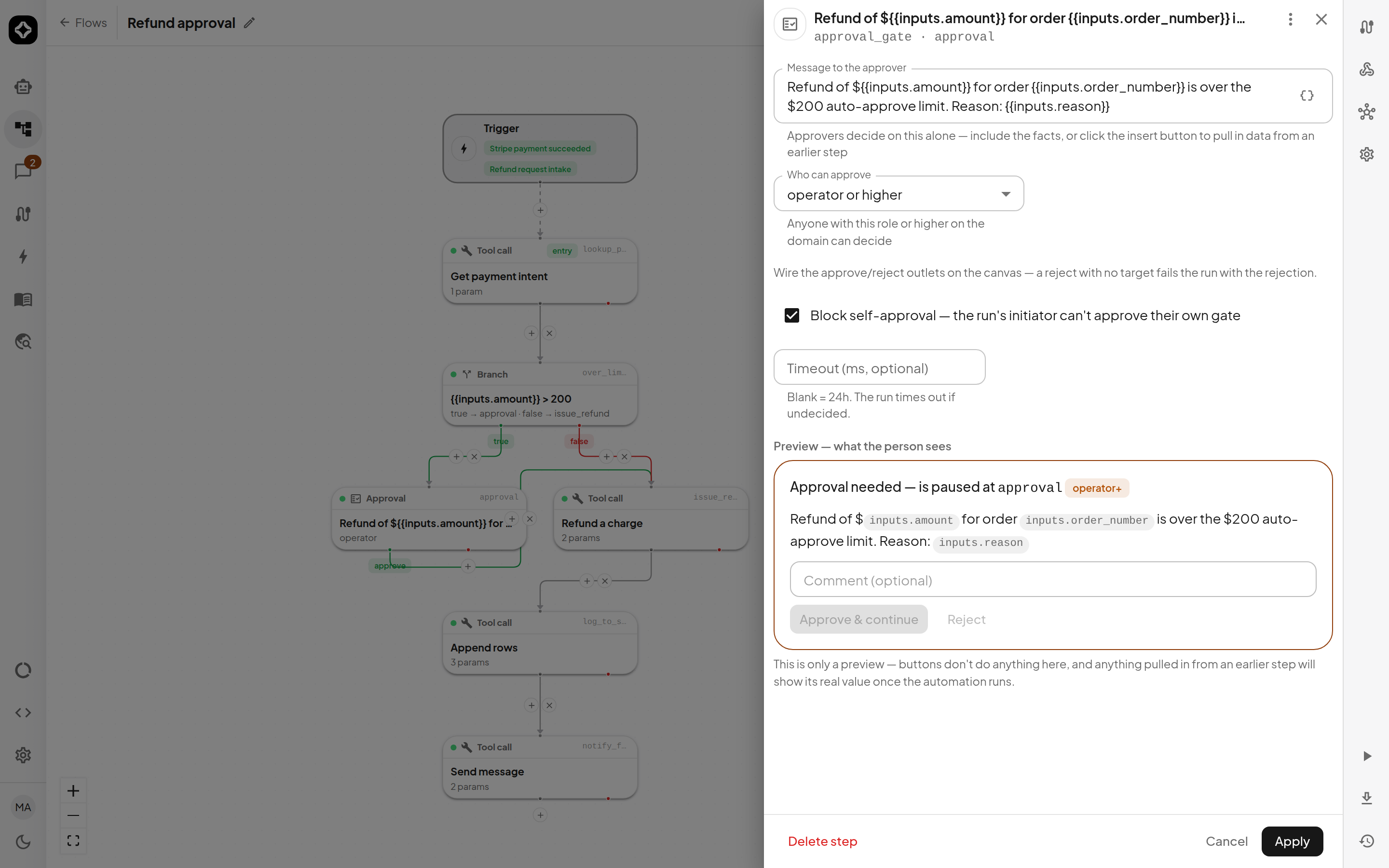
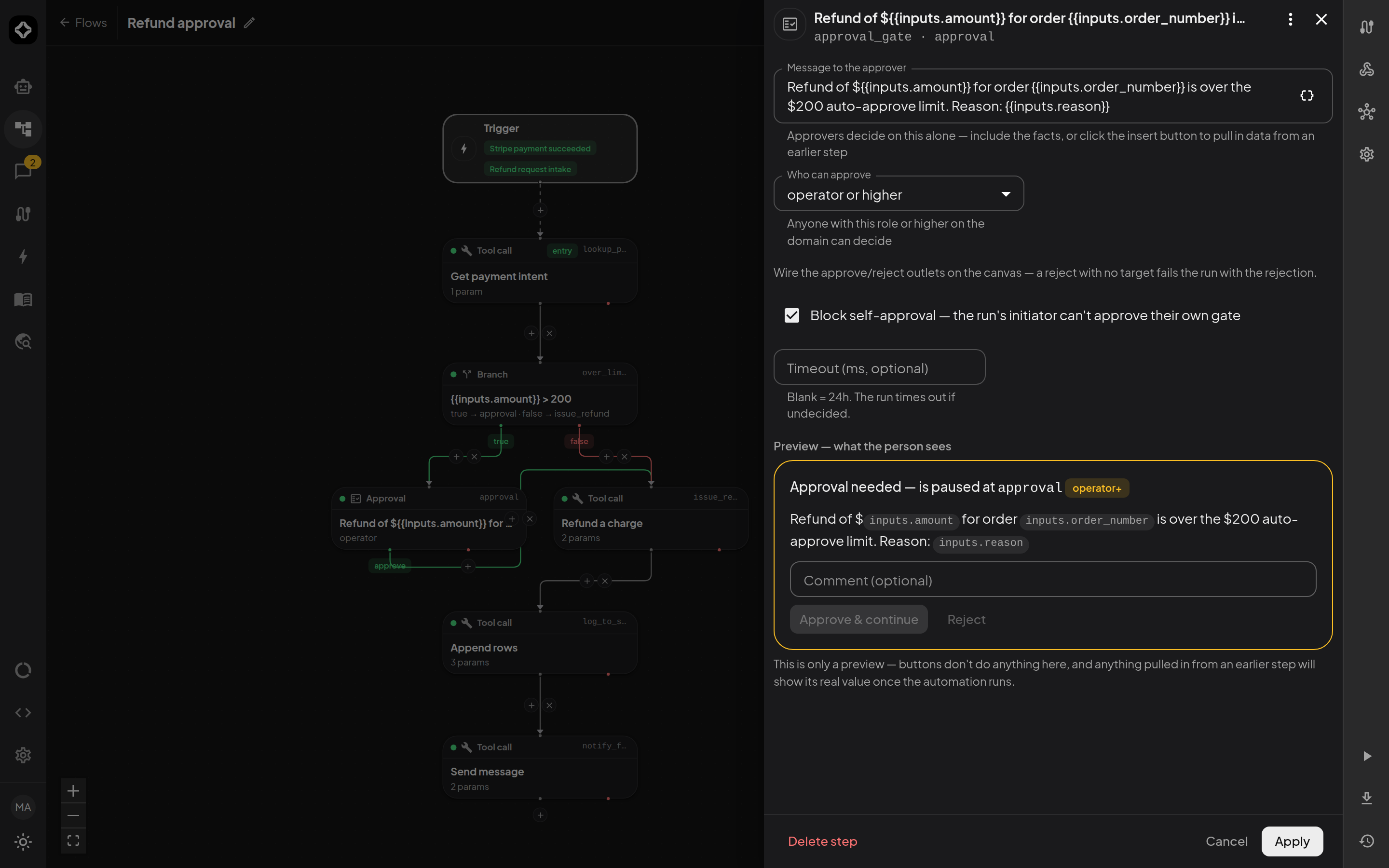
A flow's approval gate has no amount threshold of its own. Put the threshold in a condition step instead - for example, a refund flow can branch on the amount and send only larger refunds to the gate, so the limit is visible in the flow and versioned with it. (An agent's gated tool can carry a threshold, described above, because an agent has no condition step to hold one.)
Who may decide
Authority follows the credentials the gated work runs on, not seniority.
- Domain-routed approvals follow the domain's approval policy: Operator or above by default. A domain Owner can set another minimum role and name domain members as approvers. Members who meet the minimum role still qualify when people are named, and the named members are added to them, so a named Viewer can decide an agent approval. A Flow gate's own role floor still applies in addition to the policy.
- Your credentials marks work using a person's own sign-in or a credential they supplied on an API request. Only that person may decide it, whatever their role, while they retain domain access. Neither organization nor domain seniority overrides this identity.
- Confirmations can be answered only by the recorded initiator of the attended turn, including a Viewer. Other session participants cannot answer on their behalf. Stakeholders sign off in addition; they never answer for the person who asked. The initiator may answer in advance for their own messages, with Approve all this session or auto mode; see Stop asking in this conversation.
- Human tasks require the domain approval action (Operator or above) and the step's assignee-role floor. A named Viewer on the domain's approval list does not gain this separate action.
- A gate configured to block self-approval refuses the run's initiator even at the right role.
- A tool your organization requires more than one approver for needs that many different qualifying people; see More than one approver.
- Stakeholders named on a conversation sign off on its pauses in addition to all of the above, never in place of it; see Stakeholder sign-off.
Being allowed to view or participate in a session does not by itself grant approval authority. See the full Roles and permissions reference.
A row can also be blocked - its credential became unavailable while it waited, the person it was routed to left the domain or was deactivated, or not enough stakeholders can still sign off. A blocked item cannot be decided until the cause is fixed; it keeps its original expiry. Cancelling a parked run or turn withdraws its approval, and the audit trail keeps why.
Support staff signed in to your workspace under a grant cannot decide approvals unless the grant is full write mode.
The inbox, and the history
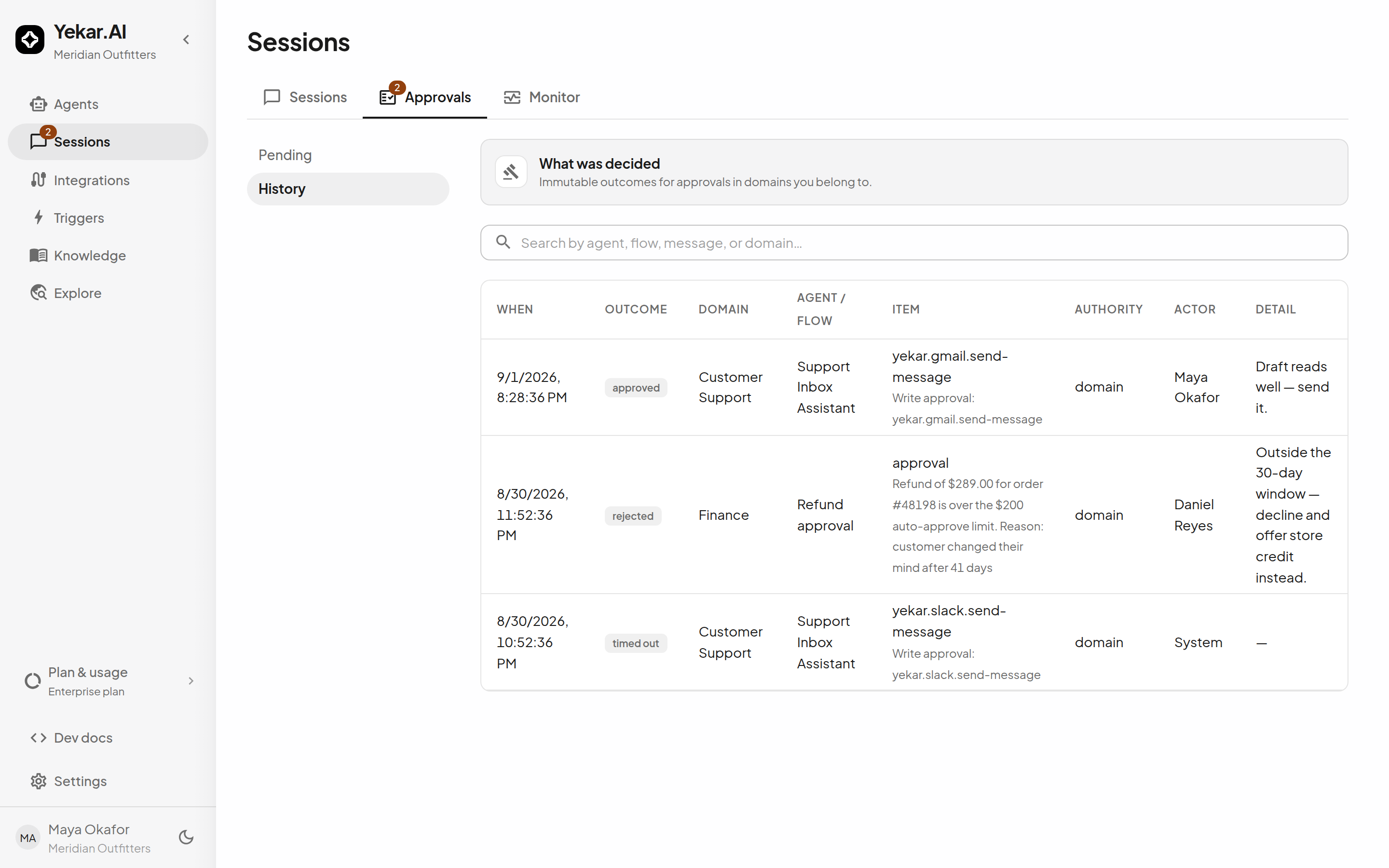
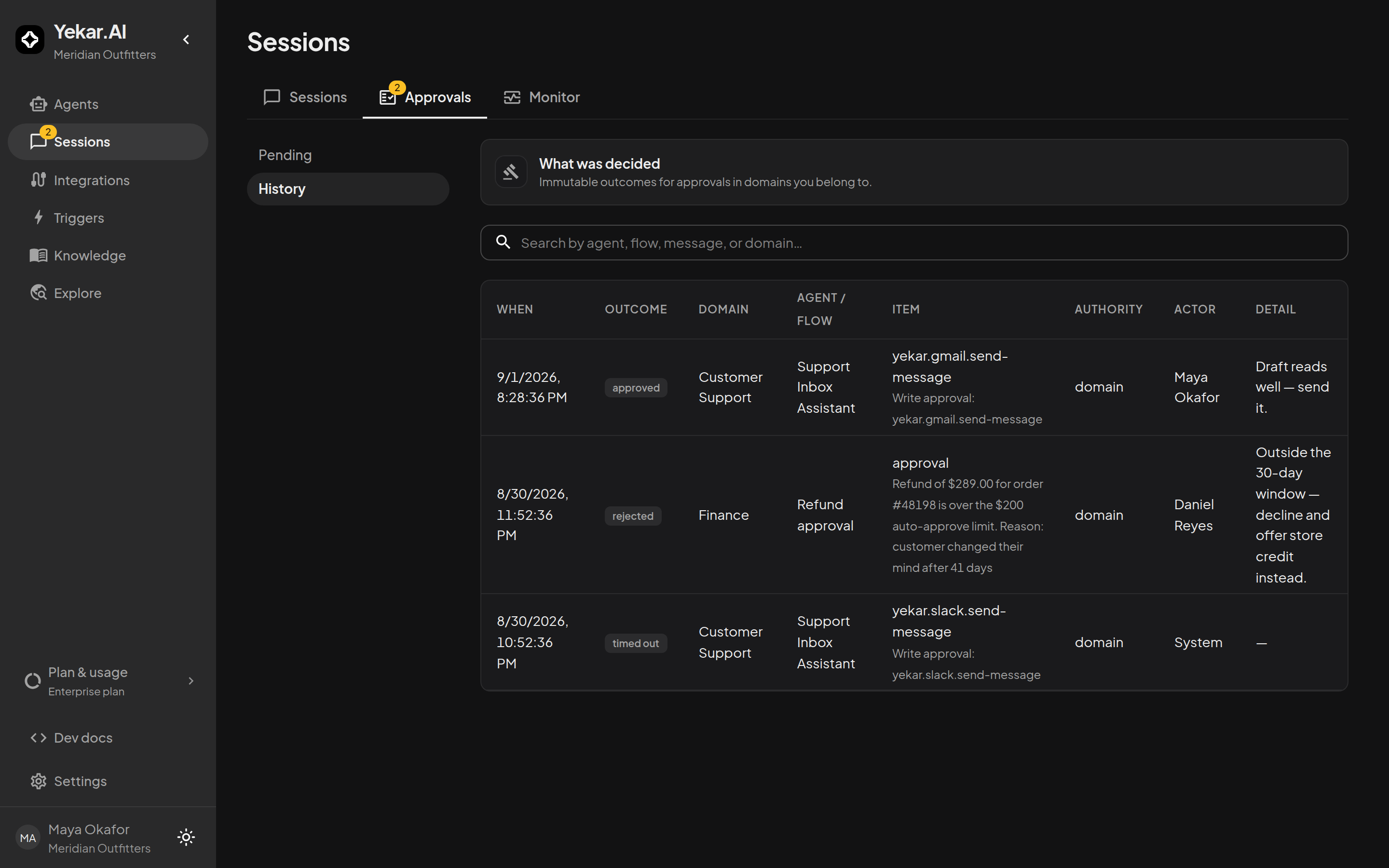
Sessions → Approvals shows approvals and human tasks you may decide, with filters by type, authority and readiness, and a decision drawer with an optional comment. The same decision can be made inline in the session, where the pending call sits with its exact arguments. Confirmations appear only in their conversation, except that a stakeholder's sign-off on one is listed under Stakeholder sign-off. See Approvals.
History is the permanent record of past decisions: approved, rejected, timed out or withdrawn, by whom, when, with the comment or the reason. It is built from the audit trail, which is never pruned and survives the deletion of the run or conversation it came from, and it covers the domains you currently belong to.
Expiry and notification
| Layer | Default window | On expiry |
|---|---|---|
| Agent confirmation | 4 h (per agent) | The call fails and the turn ends with an error; the timeout is audited |
| Agent approval | 72 h (per agent) | The call fails, the turn ends with an error, the audit trail records the timeout |
| Flow gate | 24 h (per step) | The step fails with APPROVAL_TIMEOUT and the run times out, or the branch closes |
| Human task | 24 h (per step) | The step fails with HUMAN_TASK_TIMEOUT and the run times out |
A call still waiting for more approvers, or for stakeholder sign-off, expires the same way: the answers already given do not run it. A confirmation that also needs stakeholders' sign-off waits for the with approvers window (72 h by default), not the 4-hour one.
When a gate parks work that nobody is watching - a scheduled or API-started turn, or any flow gate - the people who can decide it are emailed with the request and its deadline, and emailed again if it expires. A gate reached in a conversation someone is sitting in sends nothing; the person is already there. The one exception is stakeholder sign-off: a conversation's stakeholders are emailed when their sign-off is needed, whoever is in the conversation. An agent whose Setup asks for it also sends one reminder a chosen time before an agent gate expires, to the audience the Setup names (a confirmation reminds only the person who was asked), and to any stakeholder who has not signed off yet; flow gates have no reminder. See Notifications.
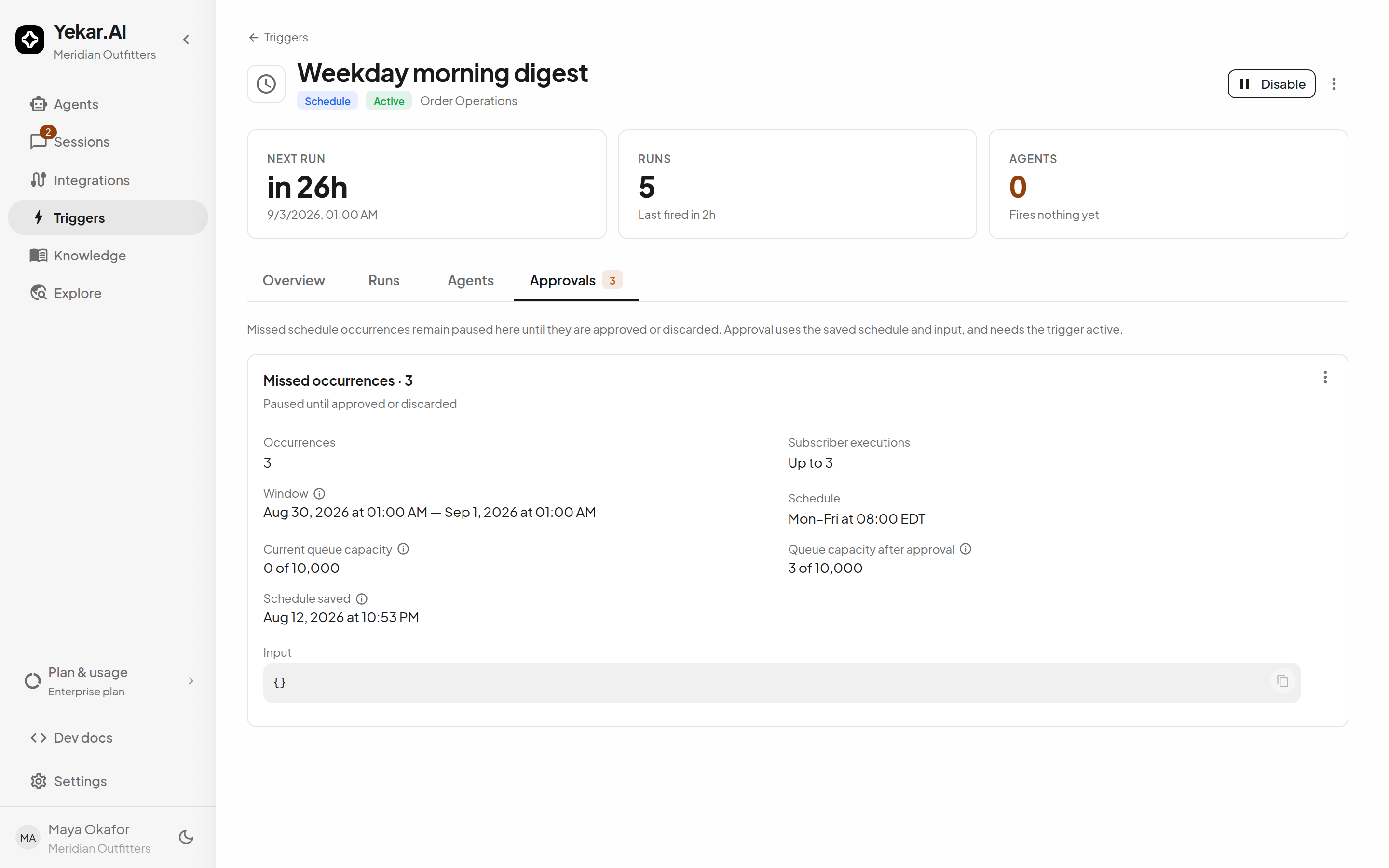
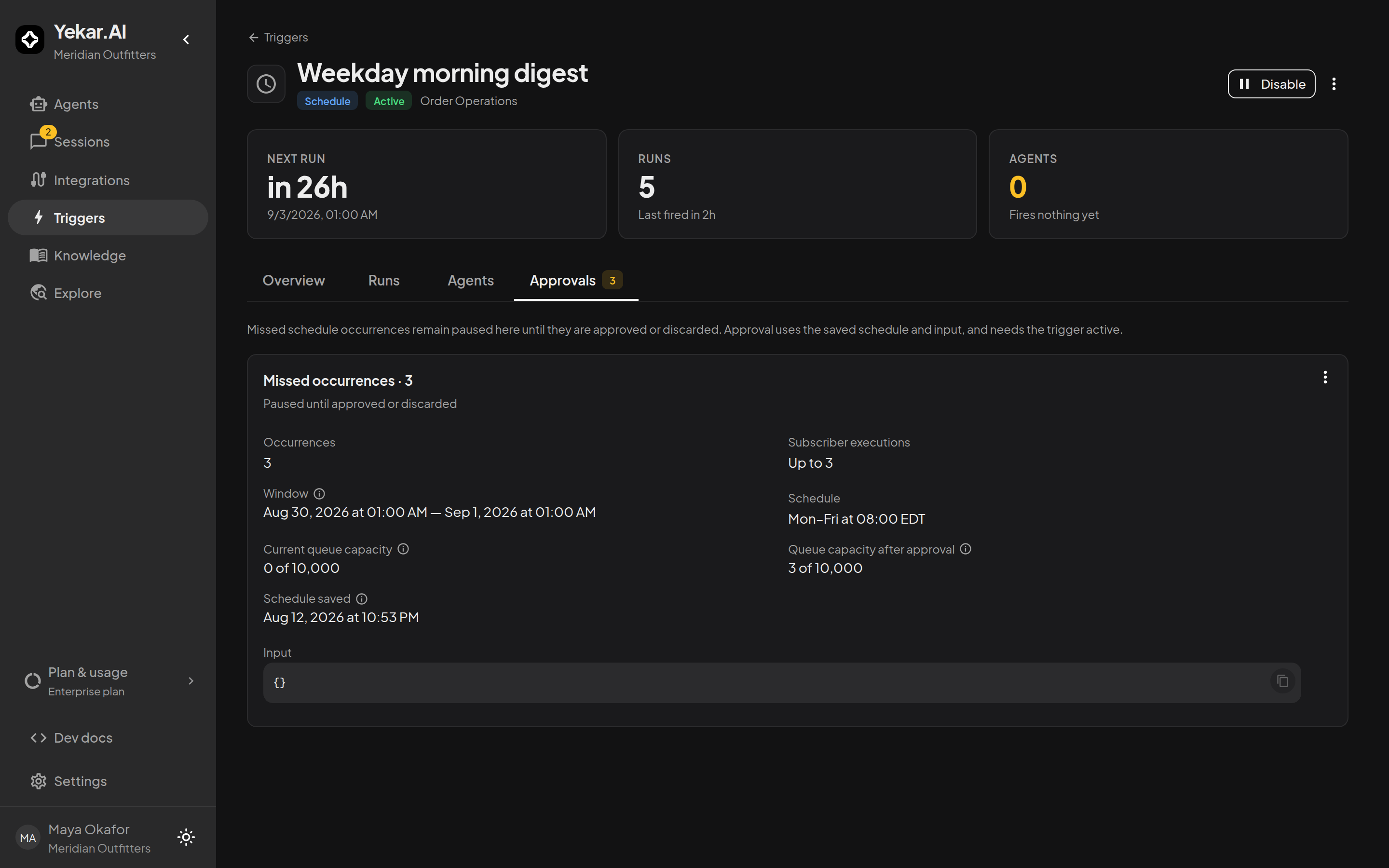
Missed schedules need a decision too
A schedule that could not fire on time - the platform was down, or the backlog ran past two minutes - does not silently run its missed occurrences later. They are parked as a catch-up batch on the trigger's own Approvals tab, with the window they cover, how many runs they would start against the organization's queue, and the schedule and input as they were saved. Anyone who manages the domain's triggers can approve all of them, a range, or just the first, or discard the rest. The trigger must be active to approve. These never appear in the Approvals inbox, because they are a decision about a schedule rather than about a side effect.