Work that happens without anyone asking
An agent someone has to open is a tool. An agent that runs at 8am every weekday, or the moment a Stripe payment fails, or whenever your own product calls it - that is staff. Triggers are how you get there.
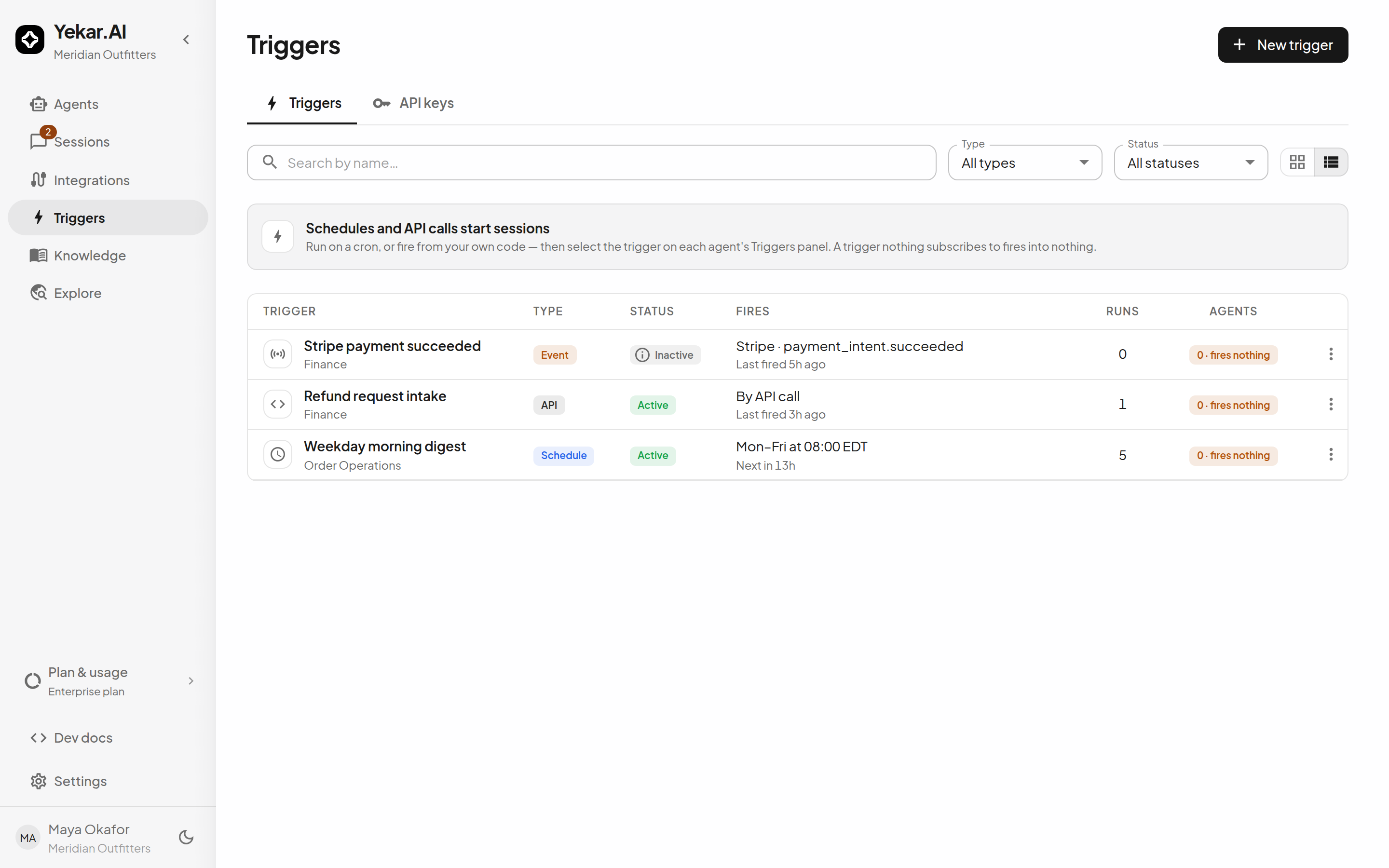
Create a trigger in a domain, subscribe the agents that should answer it, and every firing is recorded with the sessions it started.
Permissions and session ownership
All domain members can inspect triggers. Operators, Editors and Owners can create, edit, bind and manage them, including schedule catch-up batches. Organization roles alone do not grant these domain actions.
The trigger's owner is recorded on new sessions separately from their executing actor. A Viewer who owns a trigger can participate in its sessions while remaining a domain member; this does not grant permission to edit the trigger. Other Viewers can inspect those sessions, and Operators, Editors and Owners can participate. Personal API keys act as their authenticated owner. See Roles and permissions.
Create a trigger
Open Triggers and select New trigger. The stepper runs Source → Configure → Review. On Source, choose a Domain and pick what starts it: Schedule, API call or Provider event. On Configure, enter a unique Name and what that source needs. Review shows one section per step, and Create trigger saves it.
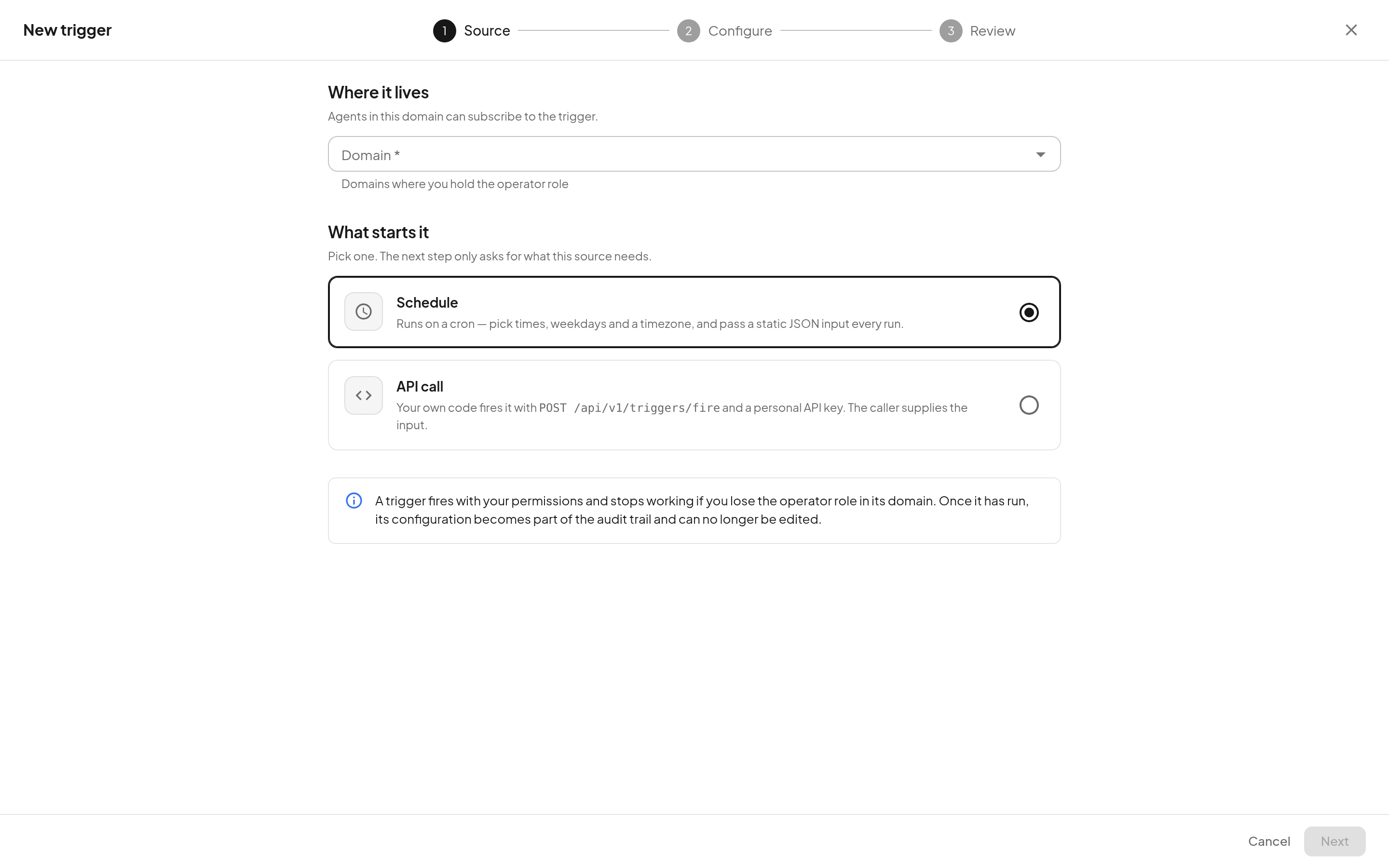
For a schedule, enter a five-field Cron expression. Saving a changed expression recomputes the next run immediately. The Review step, and the schedule's edit drawer, say about how many times it will run in the next 30 days; once agents subscribe, the edit drawer also estimates what those runs may cost, from what a typical and a costly turn of each agent cost over the last 30 days. It is an estimate and nothing more - it never stops a save or a run, it leaves out subagents those agents start, and an agent with no settled turns yet reads no priced history yet. Under What should the agent do each time?, say in plain words what every agent the schedule starts should do - it is the first thing the agent reads when it runs, and an agent that runs without its Procedure can run on a schedule only when the schedule has one. Flows on the same schedule receive it as prompt in their input; any other fixed input goes under Show advanced: other input (JSON). The Schedule option is withheld once the workspace has reached its plan's ceiling on scheduled triggers - see Settings → Plan & usage. For an API trigger, create the trigger, then use Triggers → API keys → New key when an external system needs a key. Copy a new key when it is shown; the screen does not reveal it again.
For a Provider event, pick the source from the provider cards - each says whether a connected account exists in the domain; a source can be picked before it is connected, and the trigger stays disabled until setup is complete - then choose an Event type. Stripe, GitHub, Slack and Shopify ask for a Webhook endpoint secret - except a Slack workspace connected through Yekar.AI's Slack app, which needs none - and Shopify also offers Register with Shopify automatically. Under Gate (optional) you may add one condition over the actor, the time it occurred or a declared payload field (for a webhook, any field of the JSON your system sends - type where it sits, for example order.status), using Equals, Not equals, Greater than, Less than, Contains or Is one of. Under What should the agent do with each event? (optional), say what the agents should do; select one of the event's fields, such as payload.text or actor.displayName, to drop that event's value into the sentence. Agents read the instruction first with the event beneath it, and flows on the same trigger receive the event alone. The integration's Events tab opens this same stepper with the source, connection and event type preselected.
Which providers can push events
Some integrations can start work the moment something happens on their side. Everything else is a schedule or an API call. Provider events come with your plan: Starter and higher plans include them, and Free does not. Without them, Provider event is absent from the New trigger stepper and no integration shows an Events tab - upgrade under Settings → Plan & usage to use them. Every workspace has a daily cap on the events it accepts, whatever its plan.
| Provider | Events you can trigger on |
|---|---|
| Stripe | payment_intent.succeeded, payment_intent.payment_failed, checkout.session.completed, charge.refunded, customer.created, invoice.paid, invoice.payment_failed |
| Shopify | Orders (orders/create, orders/paid, orders/cancelled, orders/updated, orders/fulfilled), refunds/create, fulfilments (fulfillments/create, fulfillments/update), products (products/create, products/update, products/delete), customers (customers/create, customers/update), inventory_levels/update and app/uninstalled |
| GitHub | pull_request.opened, issues.labeled, push, release.published, workflow_run.completed |
| Slack | app_mention, message.im, message.channels, message.groups, message.mpim, message_changed, message_deleted, reaction_added, member_joined_channel, member_left_channel, file_shared, channel_created |
| Telegram | message, edited_message, channel_post, callback_query |
| WhatsApp Business | Inbound messages, plus delivered / read / failed status updates |
| Gmail | message.new - a new message in the watched mailbox or label |
| Outlook | message.new - a new message in the connected mailbox |
| Microsoft Teams | channel.message.new - a post in a channel of a team the connected account belongs to; chat.message.new - a message in one of its chats. The account's own posts never fire |
| Twilio | message.received - an SMS or WhatsApp message to the connected number; message_status.sent, message_status.delivered, message_status.undelivered, message_status.failed, message_status.read |
| Linear | issue.create, issue.update, issue.remove, comment.create, comment.update, project_update.create |
| Jira | issue_created, issue_updated, issue_deleted, comment_created, comment_updated |
| Zendesk | ticket.created, ticket.comment_added, ticket.status_changed, ticket.priority_changed, ticket.agent_assignment_changed, ticket.tags_changed |
| HubSpot | contact.creation, contact.propertyChange, contact.deletion, company.creation, deal.creation, deal.propertyChange, ticket.creation |
| Typeform | form_response - someone submitted the form |
| Calendly | invitee.created - someone booked a meeting; invitee.canceled, invitee_no_show.created, invitee_no_show.deleted, routing_form_submission.created |
email.received - mail sent to this trigger's own hosted address | |
| Webhook | webhook.received - JSON your own system sends to this trigger's own web address |
They do not all arrive the same way, and the difference decides what you have to set up:
- Webhook providers - Stripe, GitHub, Slack, Shopify, Telegram, WhatsApp Business, Twilio, Linear, Jira, Zendesk, HubSpot, Typeform and Calendly. The provider posts to the delivery address shown on the trigger's Overview, and an unsigned or wrongly-signed delivery is refused rather than processed. What you set up differs by provider. Stripe, GitHub and your organization's own Slack app: register that address in the provider's own webhook settings and paste the provider's signing secret into Webhook endpoint secret when you create the trigger. Slack through Yekar.AI's Slack app: nothing to register or paste - connecting the workspace is the setup, and its events reach the domain that connected it. A workspace sends its events to one domain in one organization, so connecting it in a second domain is refused until it is disconnected from the first. A workspace connected before mentions were supported needs reconnecting once before its @mentions arrive. If the app is removed from the workspace, the connection asks to be reconnected. Shopify: tick Register with Shopify automatically or register it by hand, and enter the custom app's API secret key either way. Telegram: registered for you, with nothing to paste. WhatsApp Business: registered in Meta's dashboard against the app credentials an organization admin saves under Triggers → Event providers. Twilio: configured per phone number in the Twilio Console; each delivery is signed with the Auth Token the connection already holds, so there is no second secret to enter. Linear, Jira, Zendesk and Typeform: create a webhook in the provider's own settings that sends to that address, give it a secret, and paste the secret into Webhook endpoint secret - Linear and Zendesk show you one, while in Jira and Typeform you set it yourself, and a Jira or Typeform webhook without a secret is refused because nothing proves where it came from. For Zendesk, subscribe the webhook to Zendesk's ticket events rather than calling it from a Zendesk trigger. Calendly: create the webhook subscription with Calendly's API, which is the only way Calendly offers, giving it that address and a signing key, and paste the same key. HubSpot: in your own HubSpot app's webhook settings, set that address as the target and subscribe to the events you want, then paste the app's client secret; HubSpot sends events in batches and each one starts work on its own. Linear, Zendesk, Calendly and HubSpot sign the moment a delivery was sent, so one replayed minutes later is refused. Every event about one Zendesk ticket continues that ticket's conversation, so the agent sees the exchange so far; the other providers in this list start a new conversation for each event.
- Polling - Gmail, Outlook and Microsoft Teams. There is nothing to paste: once the account is connected, Yekar.AI checks it on a schedule and starts work on genuinely new mail or messages. Marking old mail read cannot re-run an agent, and the connected Teams account's own posts never fire.
- A hosted address - Email. The trigger is given its own address and the address is the route: mail sent to it fires that one trigger and nothing else. The address is shown on the trigger's Overview to people who manage the domain's triggers. Because the address is effectively a credential, anyone holding it can fire the trigger - Replace address gives the trigger a new one and the old one stops working at once, without deleting the trigger. This provider needs an inbound mail domain configured for the deployment; where there is none, Yekar.AI declines to mint addresses rather than hand out ones that could never receive. A reply stays in the conversation its thread started: Yekar.AI follows the message's thread headers back to the first message, so the agent sees the whole exchange rather than meeting each reply as a stranger. Mail without thread headers starts a new conversation, and a matching subject alone never joins two - "Re: invoice" from two customers is two conversations.
- Your own web address - Webhook. For any system that can send an HTTP request but has no integration here. The trigger gets its own web address, created on its Overview after you create the trigger - see Send JSON from your own system.
Triggers → Event providers (organization admins only) holds the organization-level credentials a few providers need before their triggers can be enabled - Meta's app id, app secret and verify token for WhatsApp Business, and the Pub/Sub topic Gmail's mailbox watch publishes to. Every other provider is listed there as Configured per trigger: the trigger asks for what it needs when you create it. Delivery health is on the trigger's own Overview, under Why work didn't run - when an event last arrived and what happened to each arrival.
Send JSON from your own system
A Webhook trigger starts work whenever your own system sends it JSON - an internal tool, a form backend, a monitoring alert, or a service with no integration in Yekar.AI.
- Create the trigger with Provider event and the Webhook source. There is no account to connect.
- On the trigger's Overview, select Create address under Web address. Leave Require a signature ticked unless your system cannot sign requests.
- Copy the address, and the signing secret if you chose one, into your system. Both are shown once - Yekar.AI keeps only a fingerprint of the address. If either leaks or is lost, select Replace address: the old address stops working at once.
- Enable the trigger and subscribe an agent or flow to it.
Your system sends each delivery like this:
POST https://<your Yekar.AI API address>/api/v1/webhook-ingress/<token>
Content-Type: application/json
Idempotency-Key: <unique per delivery>
X-Yekar-Signature: sha256=<hex HMAC-SHA256 of the raw body, keyed with the signing secret>

{ "order": { "id": 7, "status": "paid" } }
- The address is the credential. Anyone who has it can start the trigger, so keep it private. A signature adds a second check: a copied address alone is refused.
- Retries run once. Send an
Idempotency-Key(orX-Delivery-Id) header that stays the same when your system retries the same delivery; a repeat within 48 hours is accepted without starting work again. Without one, every request is new work. Keys belong to the trigger, so two triggers can use the same keys without affecting each other. - The agent receives the JSON under
payload.body, and the key you sent aspayload.deliveryId. Each delivery starts its own conversation. - Answers:
202with{ "accepted": true }when the delivery was taken;200with{ "accepted": false }when it arrived but the trigger did not run it (switched off, filtered by its gate, or over a daily event limit - Why work didn't run on the Overview counts which);400 WEBHOOK_BODY_INVALIDwhen the body is not JSON;401 WEBHOOK_SIGNATURE_REQUIREDor401 WEBHOOK_SIGNATURE_INVALIDwhen a signed address gets no signature or the wrong one;404for an address that does not exist or was replaced.
Webhook triggers count toward the plan's trigger limit and the workspace's daily event limits like every other event trigger.
Subscribe an agent or flow
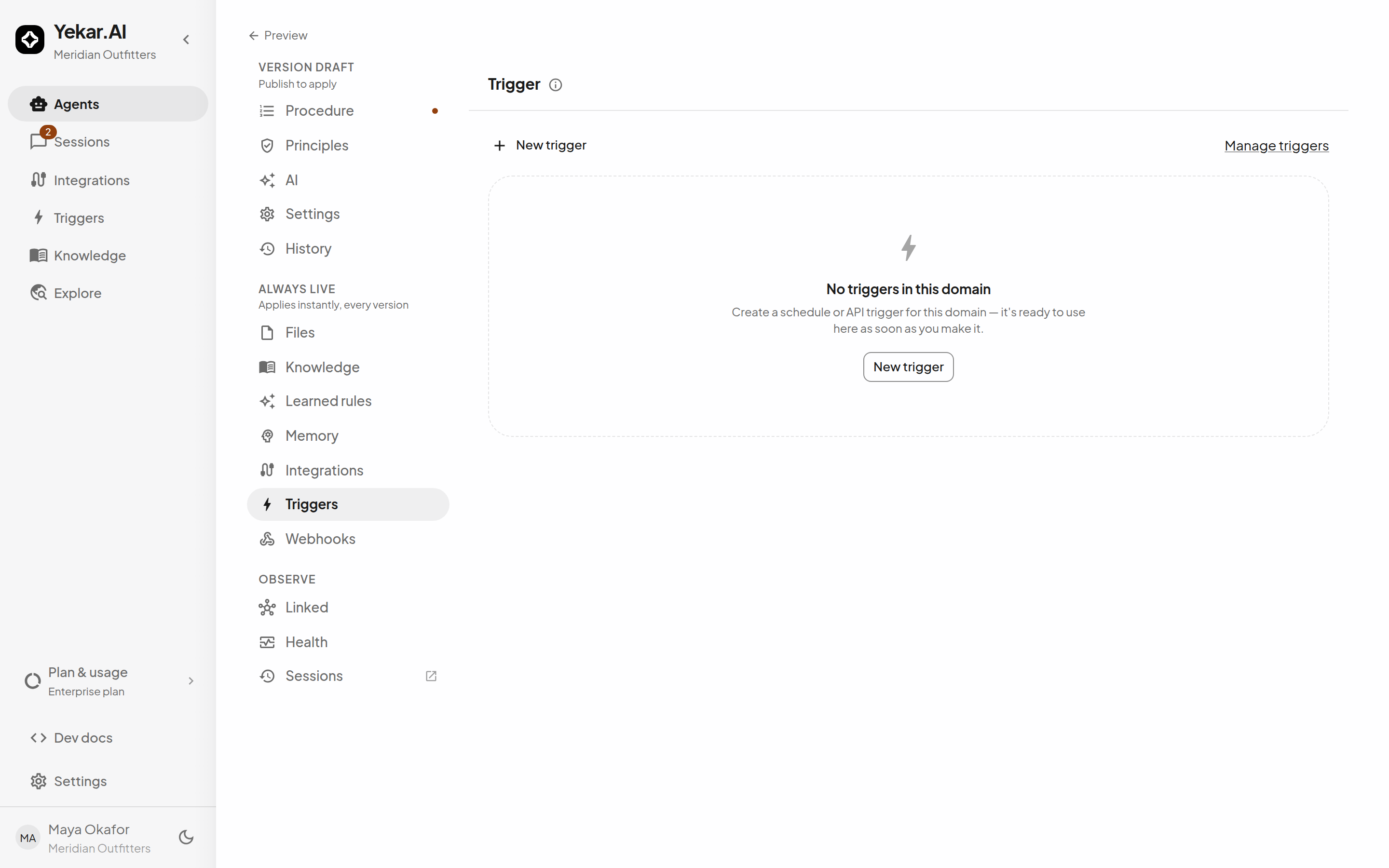
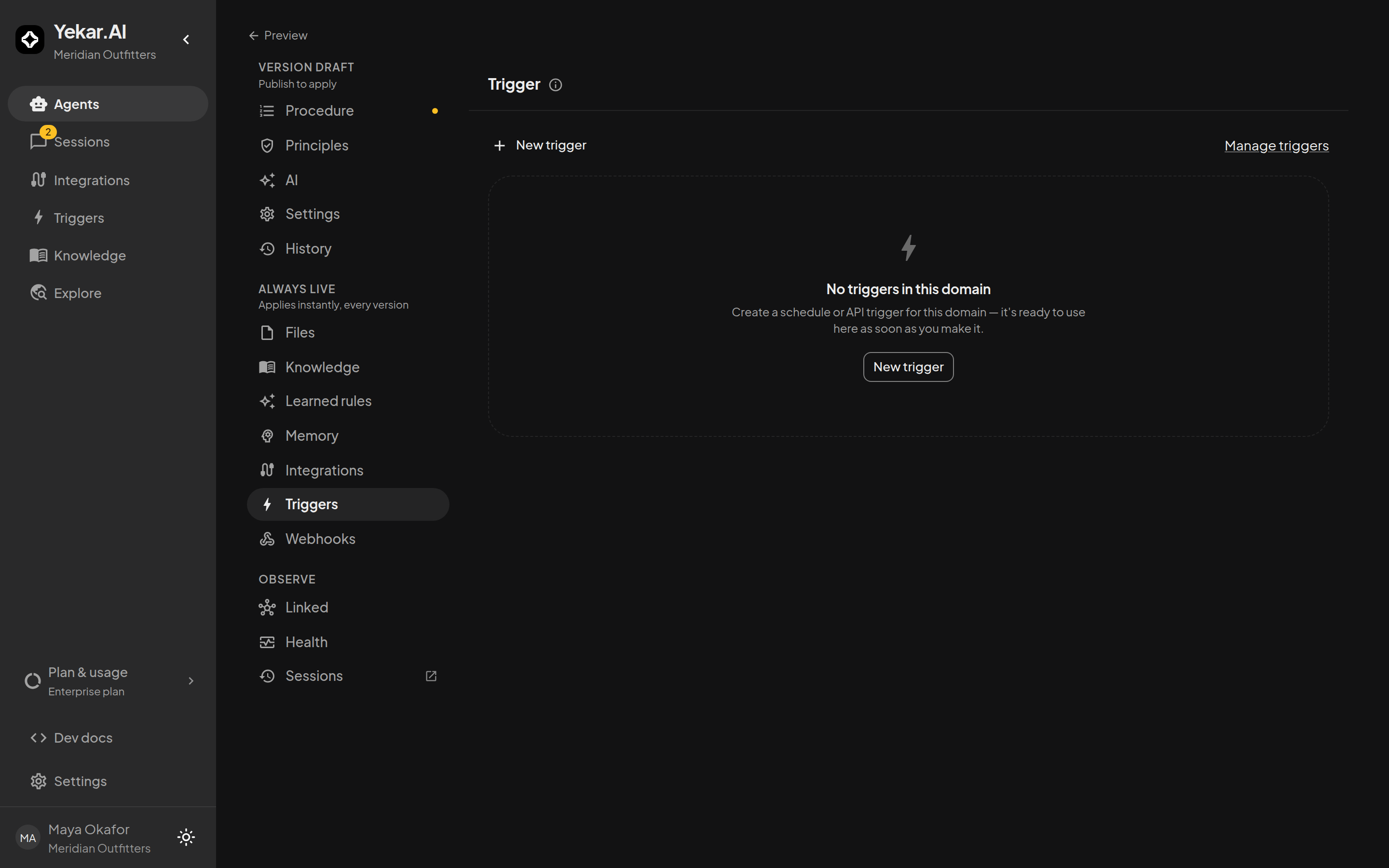
Open an Agent and select Triggers, or open a Flow and select its Trigger node. Select the trigger and save. You can also choose New trigger inside the Trigger drawer itself; its domain is already fixed.
Anything may subscribe; whether a firing can actually run it is decided at the firing, per integration, and recorded in the trigger's run history rather than refused when you save. Team-account and Platform connections are always safe unattended. Two identities are not, and each has its own recorded reason:
- An API caller binding set to Fail the run (credential required) - nobody is present to supply a token. Its firings are skipped as
integration_not_unattended. Set it to Fall back to the domain, or to the team account, and it fires normally. - A binding at The person using it - the firing runs as the person who created the trigger, so it is skipped as
person_unavailableonce they are no longer an active member, have not signed in, or the domain's door is shut. Anyone who manages the domain's triggers can create one, and it is that creator the agent then acts as - so create the trigger as the person whose account the work should run on.
See Identity.
Answer in the chat the message came from
A Slack, Microsoft Teams, Telegram, WhatsApp Business or Twilio trigger hands the agent a message, and by default the answer stays in the agent's conversation here - the agent posts to the chat only if its instructions tell it to. Turn on Reply in the conversation in the agent's Settings and the answer is posted back where the message was written, as the connected account: a Slack mention is answered in its thread, a Teams channel message under its thread, and a chat or text message in the same chat. Each Slack mention starts its own conversation, and replies in its thread continue it. If the send tool is in the agent's Approvals, each reply waits for an approver first.
To set this up in one go, use Answer in Slack or Teams - under Explore → Tips & tricks, or beside New trigger on an agent's Triggers. Pick the agent, choose Slack or Microsoft Teams, and whether it answers Only when someone mentions it or every message in its channels; the wizard fills in the event type (in Teams, mentions are a gate on the channel event). It then shows Reply in the conversation with what it means for this agent - who the answer posts as, and whether each reply waits for an approver because the send tool is in Approvals. If the agent does not use Slack or Teams yet, the wizard adds it, with the same choice to have its write tools ask first. The last step reviews each answer, creates the trigger switched off and attaches it to the agent, saves the setting to the agent's draft and asks you to publish, because a Setup change reaches conversations only once published. Turn the trigger on from its page once the account is connected.
For a Flow, declare its start fields under Inputs this flow needs to start. In the inline New trigger drawer, provide Other input (JSON) to pass the same input on every firing; a schedule's instruction reaches the flow as prompt beside it.
Review or stop firing
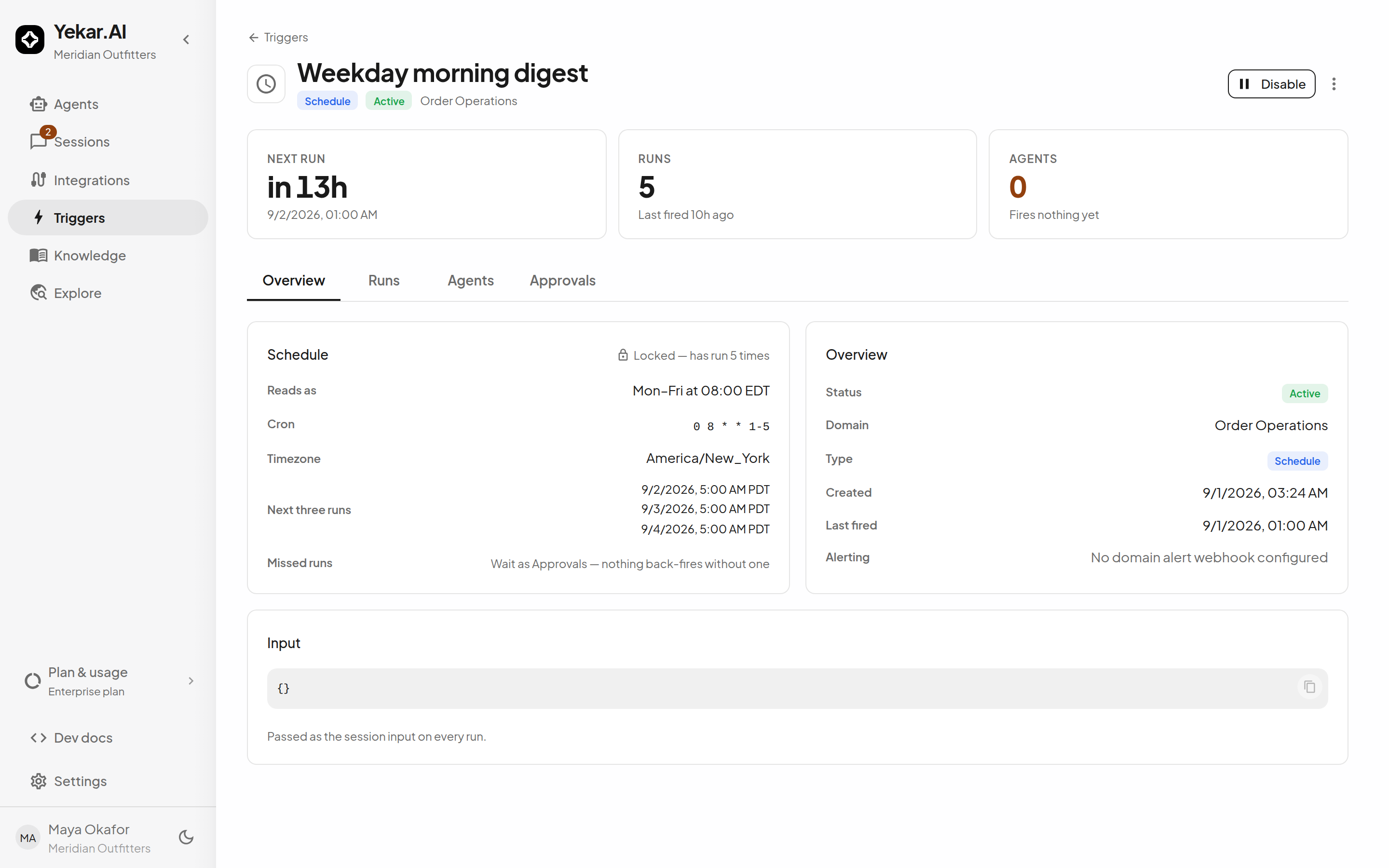
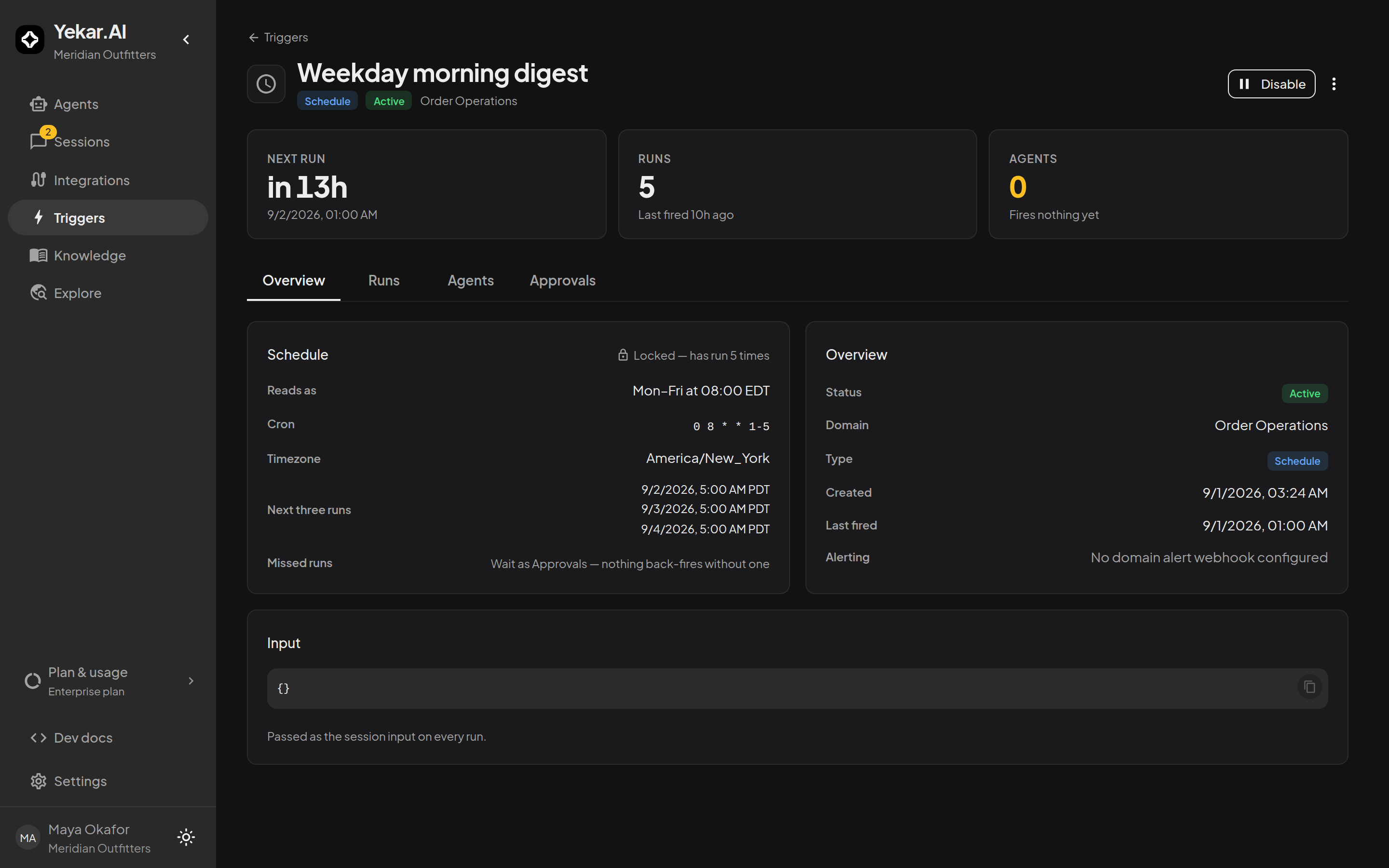
Open Triggers, choose a trigger, and inspect its firing history. Each result links to the session it started and shows the run outcome or recorded error. Use the trigger’s action menu to Disable or Enable it. A disabled trigger remains configured but does not fire.
Trigger Run history uses these statuses:
| Status | Meaning |
|---|---|
succeeded | Every subscribed agent and flow started. |
refused | The platform deliberately declined every start, for example because an API call did not send credentials a subscriber requires. This is not an agent or flow failure. |
failed | The firing could not start work: its acting user was no longer valid, every subscriber start failed, or it stopped waiting for capacity. |
partial | Subscribers produced more than one outcome: some started, were refused, or failed. |
skipped | Nothing was attempted: no subscribers, a scheduled firing belonging to a suspended organization, or every subscriber skipped for a recorded per-binding reason such as integration_not_unattended or person_unavailable. |
pending | The firing is still starting its work - including while it is waiting for capacity - or its outcome was never finalized. |
A schedule that could not fire on time - the platform was down, or a backlog ran past two minutes - parks its missed occurrences as a catch-up batch on the trigger's Approvals tab rather than firing them late on its own. Anyone who manages the domain's triggers approves all, a range or the first of them, or discards the rest; the trigger must be active. Re-enabling a disabled schedule never backfires missed runs. See How approvals are layered.
The interface presents a pending run older than one hour as Interrupted before completion, unless it is waiting for capacity. Interrupted is a presentation, not a status. The run's recorded status stays pending, and the API never returns interrupted.
When the workspace is at capacity
Two limits cap how much runs at once: your plan's limit on conversations running at the same time, and the Max concurrent runs an agent or flow sets for itself. When a trigger fires and a subscriber meets either limit, the firing waits rather than dropping the work:
- The run shows Waiting for capacity, with each waiting subscriber's reason, when it tries again and when it stops waiting.
- It tries again every 2 minutes, so the work starts soon after something running finishes.
- After 60 minutes without room, it stops: those subscribers show Stopped waiting, they did not run, and the run is recorded as
failed(orpartialwhen other subscribers started). Its alert goes out like any failed run. - If you switch the trigger off while a run waits, the run stops at its next attempt instead of waiting out the hour: those subscribers show Skipped, saying the trigger was switched off, and they did not run. The run is recorded as
skipped, or keeps the outcome of the subscribers that had already started. Switching off is not a failure, so no alert goes out for it.
Capacity frees by itself: a conversation stops counting toward either limit when its turn finishes, and at the latest ten minutes after the turn began. A run still waiting after an hour means steady work is holding the limit - raise the agent's own limit, or move to a plan that runs more at once.
A person starting their own conversation is not made to wait: at either limit they are told straight away, and can send again.
Triggers that keep failing
A trigger whose last 10 runs all failed is switched off to stop it failing again. Its page says Switched off after failing several runs in a row, and its creator and everyone who manages the domain's triggers get an email. Look at the run history to see what went wrong, fix it, then switch the trigger back on - after which it needs 10 new failures in a row before it is switched off again. A trigger that runs an agent as The person using it can be switched back on only by its creator.
Only failures you can fix count. Runs that partly succeeded, were refused, skipped, cancelled or rejected break the run of failures, and so do runs that failed because:
- they stopped waiting for capacity, or
- the workspace ran out of credit or reached its AI budget - topping up is the fix, so your triggers stay on.
A trigger that belongs to an installed module is never switched off this way. To use a number other than 10 for your workspace, ask Yekar.AI support.
API keys
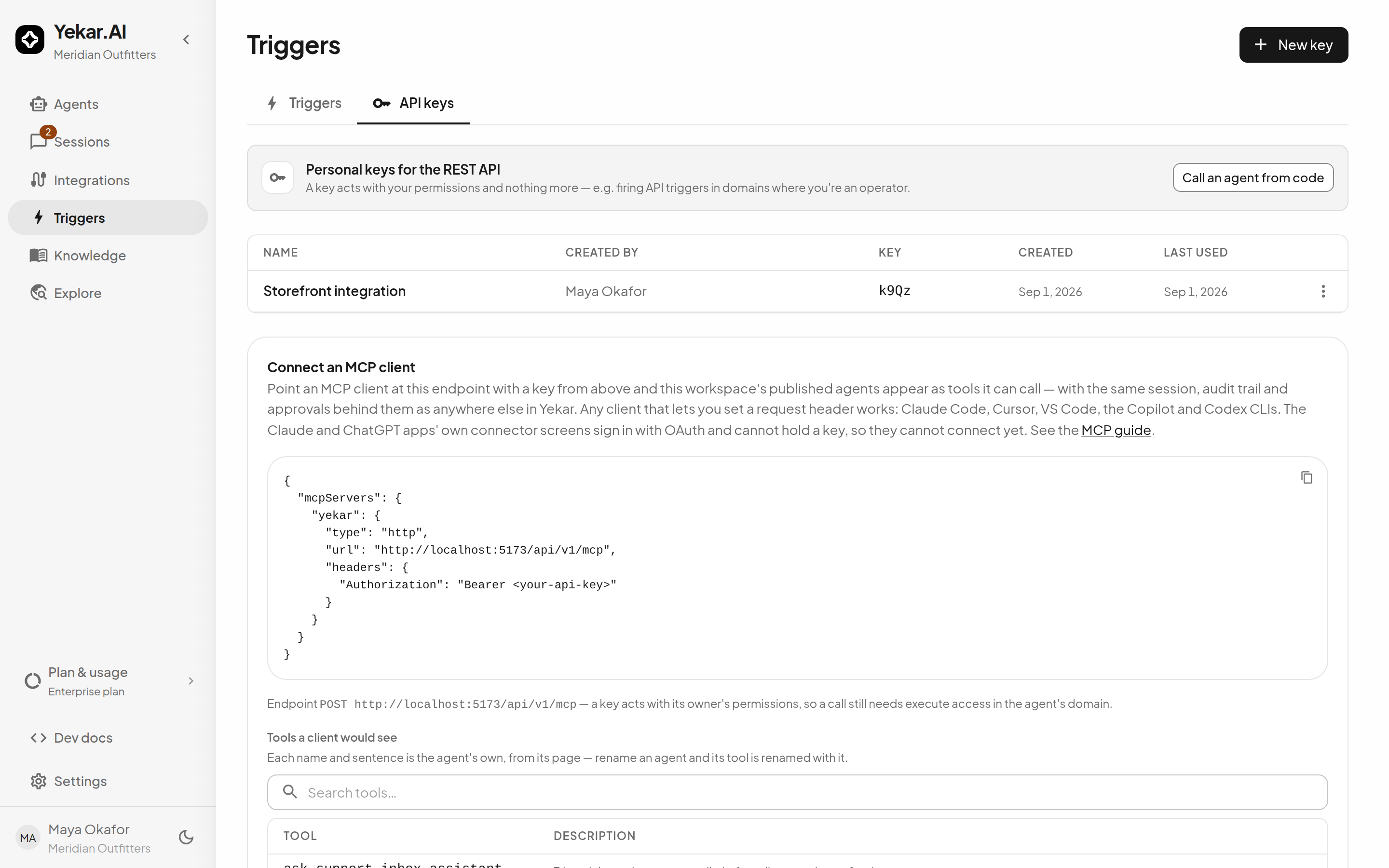
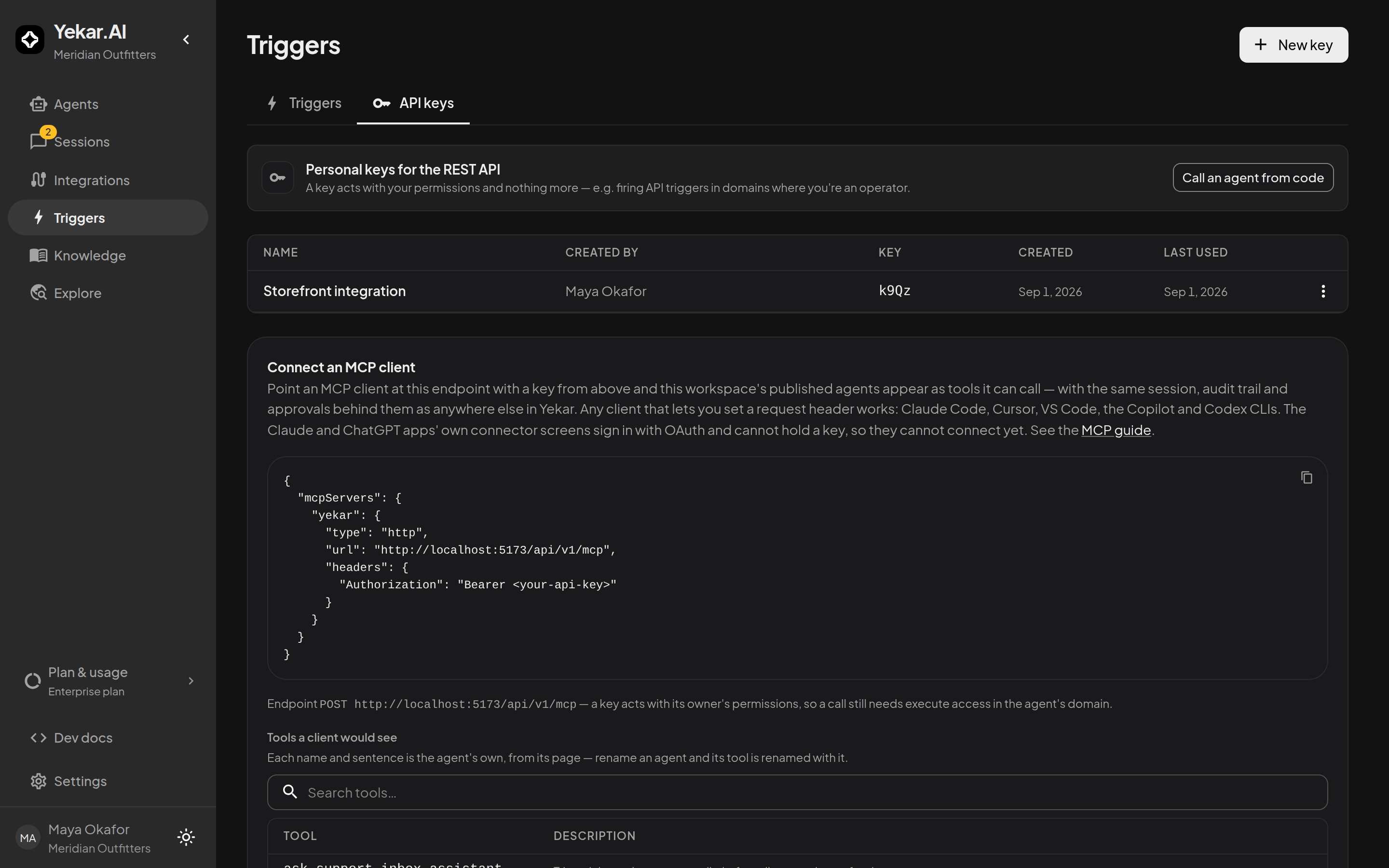
An API trigger needs a key before an outside system can fire it. Triggers → API keys is where you create, name, rotate and revoke them.
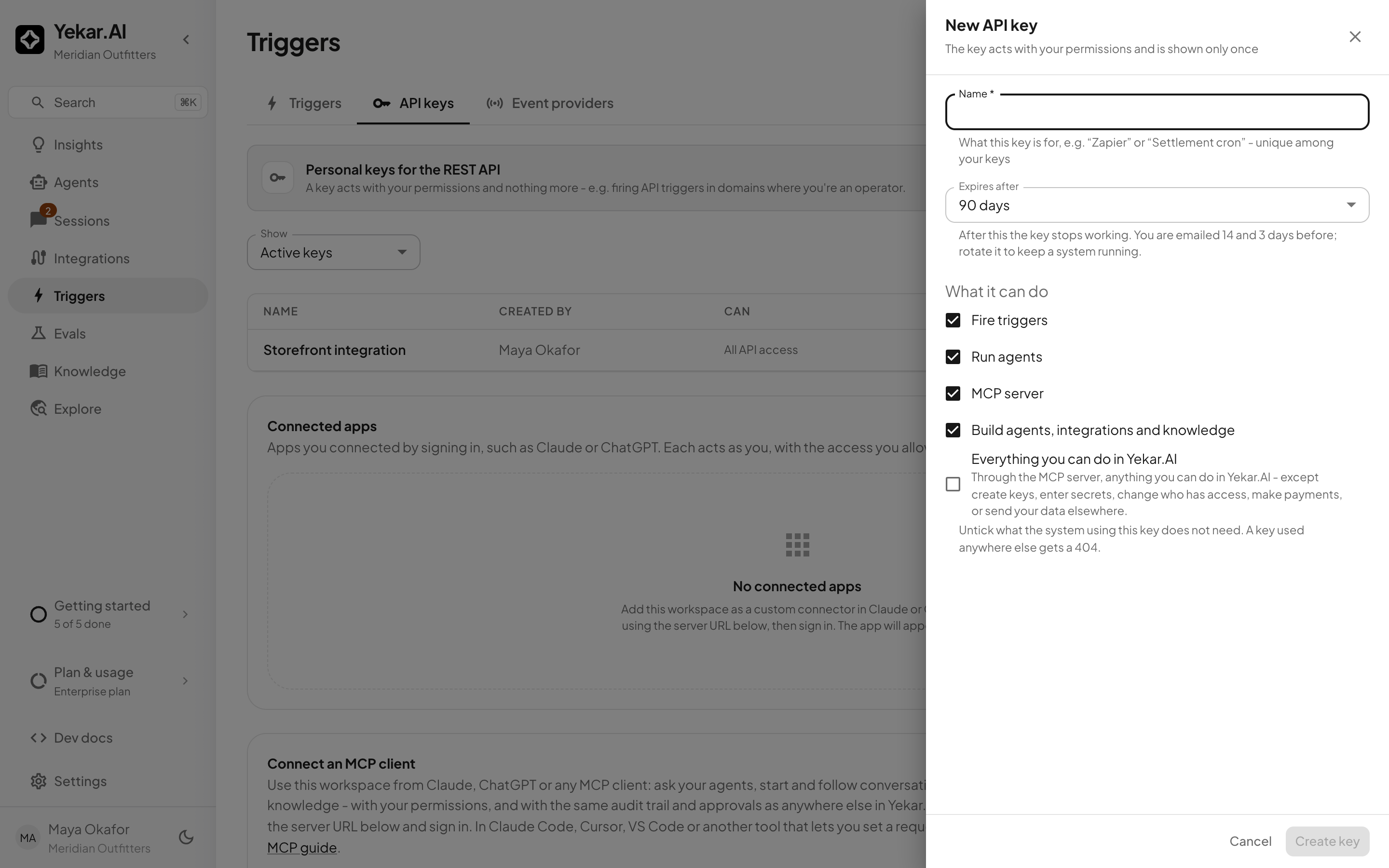
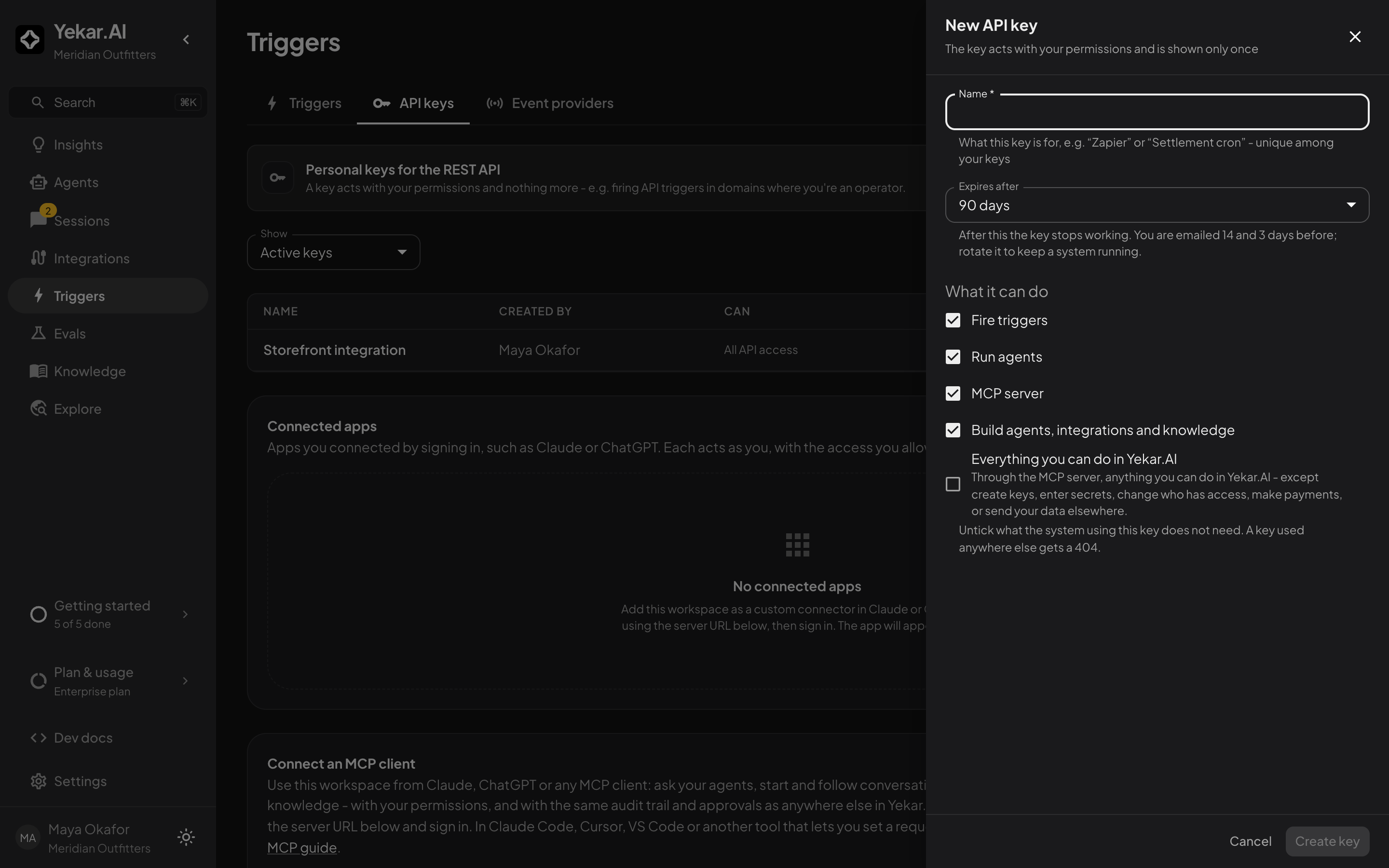
New key asks for three things:
- A name - what the key is for, unique among your keys.
- Expires after - 7, 30, 90, 180 days or 1 year; 90 days unless you change it. After that the key stops working, so rotate it before then to keep a system running. The list shows the date, flags Expires soon in the last week, and Expired after.
- What it can do - the scopes the key opens: Fire triggers, Run agents, MCP server, and Build agents, integrations and knowledge. All are ticked to start; untick what the system holding this key does not need. A request outside the key's scopes is answered with a 404, as if the route did not exist.
Copy a new key when it is shown - it is never displayed again. Rotate key, in a key's row menu, replaces the secret and keeps the name and scopes: the new key is shown once with its own expiry, and the old secret stops working at once, so move a system over by rotating rather than by creating a second key. Revoke key stops a key immediately; it stays listed under Revoked keys as the record of who revoked it and when. A key always acts with its owner's permissions, rechecked on each call, and deactivating a person retires every key they hold.
When calls carrying one of this workspace's keys were turned away before they reached any trigger - a key that exists but can no longer be used (its owner was deactivated, say), a request body that was not valid, or a trigger that does not exist here or is not an API trigger - a notice at the top of the page counts them over the last 7 days by reason, with when each was last seen. Callers received a 404 in every case, so this notice is often the first sign that a system is still pointed at a trigger that was deleted or a key whose owner has left. A call with no key, or with a key Yekar.AI does not recognise - including one that has expired - cannot be tied to any workspace and is not shown. A fire that reached a trigger but was refused there - because the trigger is disabled, or the key's owner lost access to its domain - is counted on that trigger's own page instead, with what to do about it.
The same page has Connect an MCP client. Point any MCP client that can send a request header - Claude Code, Cursor, VS Code, the Copilot and Codex CLIs - at the endpoint shown there with one of these keys, and this workspace's published agents appear as tools it can call, with the same sessions, audit trail and approvals behind them. The page lists the tools a client would see, one per published agent. The key must keep the MCP server scope, or the endpoint answers 404. A key acts with its owner's permissions, so a call still needs execute access in the agent's domain. See MCP.
Tips
If a firing was skipped rather than run, open the trigger's history and read the recorded reason - integration_not_unattended means a credential-required API caller binding, and person_unavailable means the trigger's creator can no longer act. Subscribing is never refused; the decision happens at the firing. If static input is rejected, enter a valid JSON object that matches the Flow’s declared inputs. If an API call fails, inspect the trigger’s firing history. See Troubleshooting.
The Run an agent on a schedule wizard, under Explore → Tips & tricks, picks a published agent and sets when it runs.
Lesson 6 of 7 in Learn. Next lesson: Keep people in control.