Describe the job, review the agent
Yekar.AI switches Agent Builder on for everyone at once - it is not turned on workspace by workspace. While it is on, Agent Builder appears on the Agents page and you can describe an agent in prose and have the Setup drafted for you. While it is off, create agents with New agent instead.
The blank Setup is the hardest part of building an agent. Agent Builder removes it: describe the problem in the same words you would use to brief a colleague, and Builder drafts the agent while you talk - name, principles, procedure, the tools the work needs - with the draft taking shape beside the conversation as it goes.
Nothing it writes goes live on its own. The draft is an ordinary Agent draft, and publishing it - or an article it wrote for the agent's knowledge - needs your explicit approval in the conversation.
Who can use and share Builder
Builder requires Editor or Owner access in the agent's domain, the same permission as creating or editing an agent by hand. Organization Owner/Admin status alone does not grant it.
Once a conversation is linked to an agent, everyone who can edit that agent can read the transcript, send messages and respond to Builder's requests, regardless of who started it. New messages identify the authenticated author. A conversation with no linked agent is private to its creator while they retain edit access to its domain. Losing edit permission removes access; other Editors and Owners can continue the shared conversation. See Roles and permissions.
Open Builder
- Open Agents and select Agent Builder.
- If you can edit agents and flows in more than one Domain, choose which one the agent belongs to. With exactly one, it is chosen for you.
- Describe what the agent should take care of, and send.
The first message creates the draft agent, so there is nothing to name or configure first. Builder replies as it works, and the pane beside the conversation fills in.
Read the draft while it is written
The draft pane has two views:
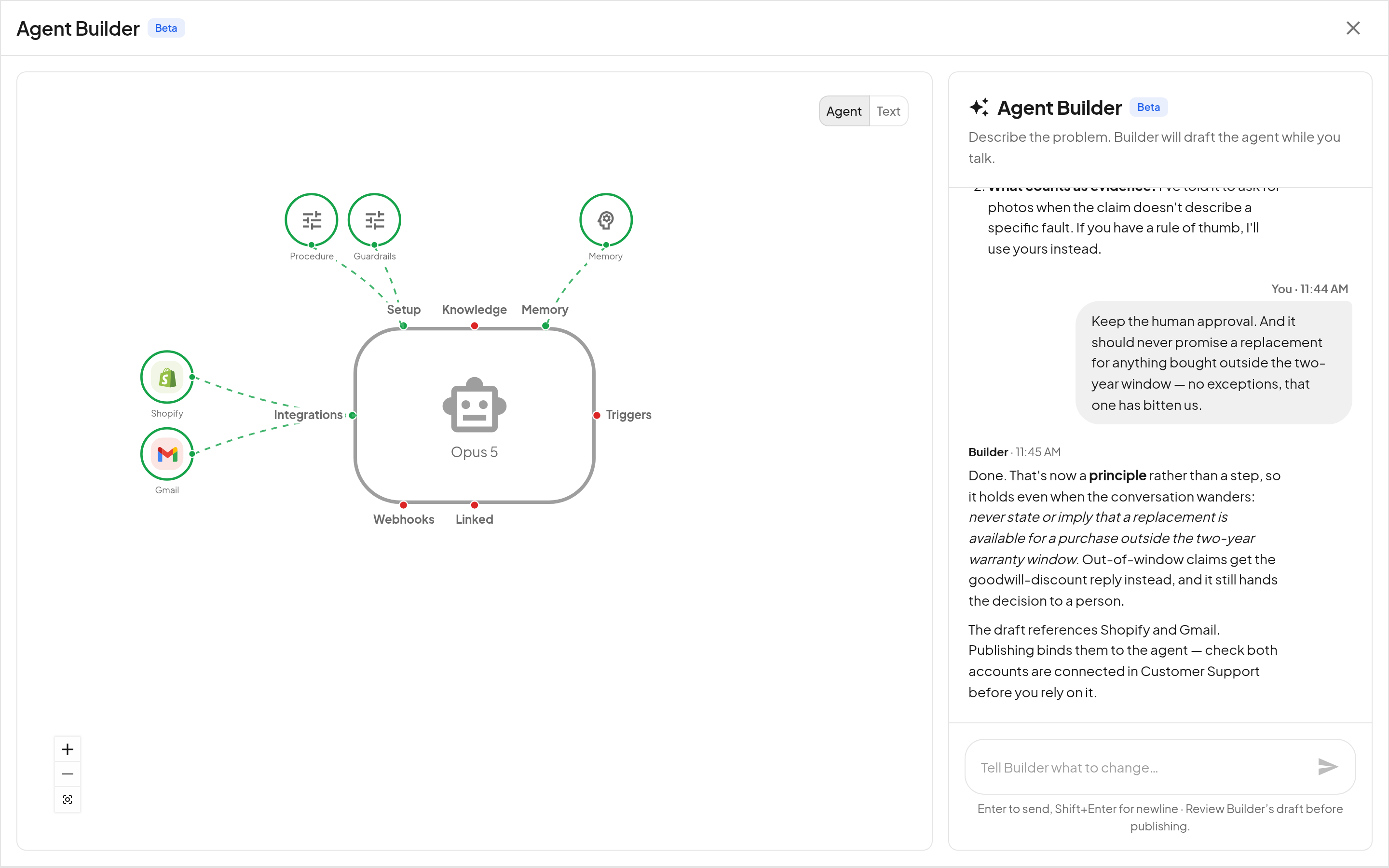
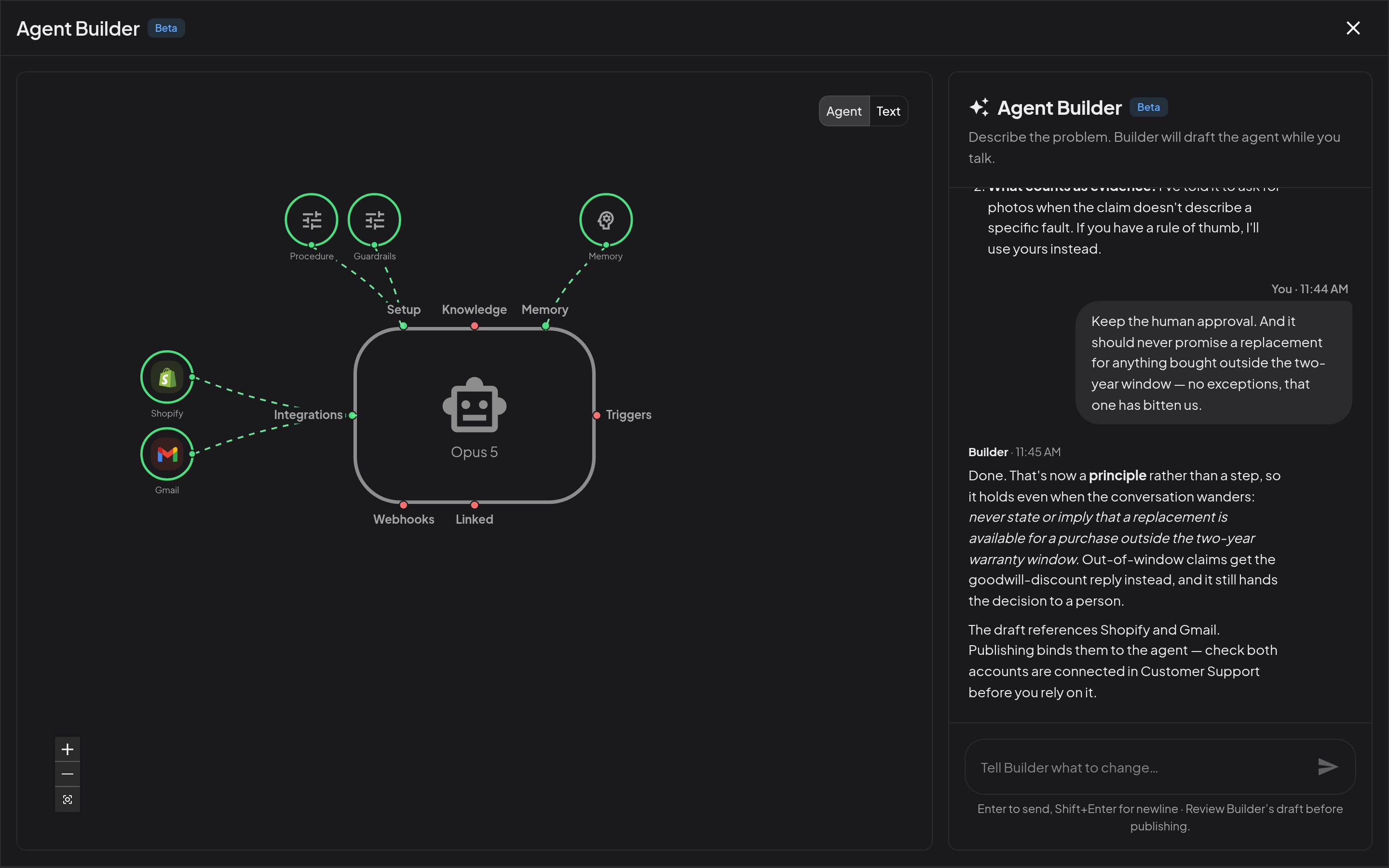
- Agent - the agent's anatomy: the same live map you get on the Agent page, drawn from the draft as it exists right now.
- Text - the draft in full: Principles, Procedure with its
#tool references, and Capabilities. - Tests - the agent's tests, who wrote each one, whether it is held out, and how it did on its last run. Open in Evals takes you to the full list.
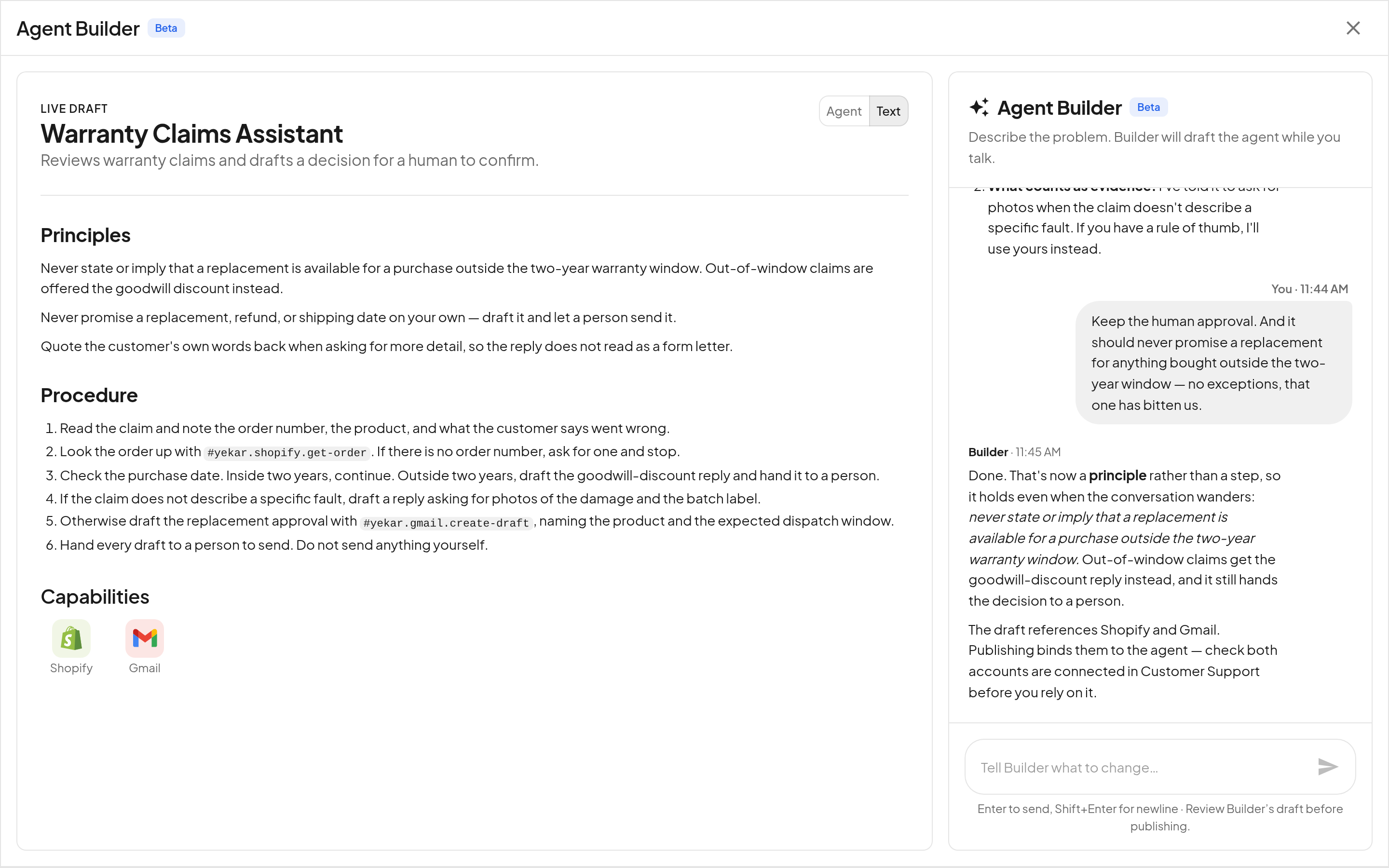
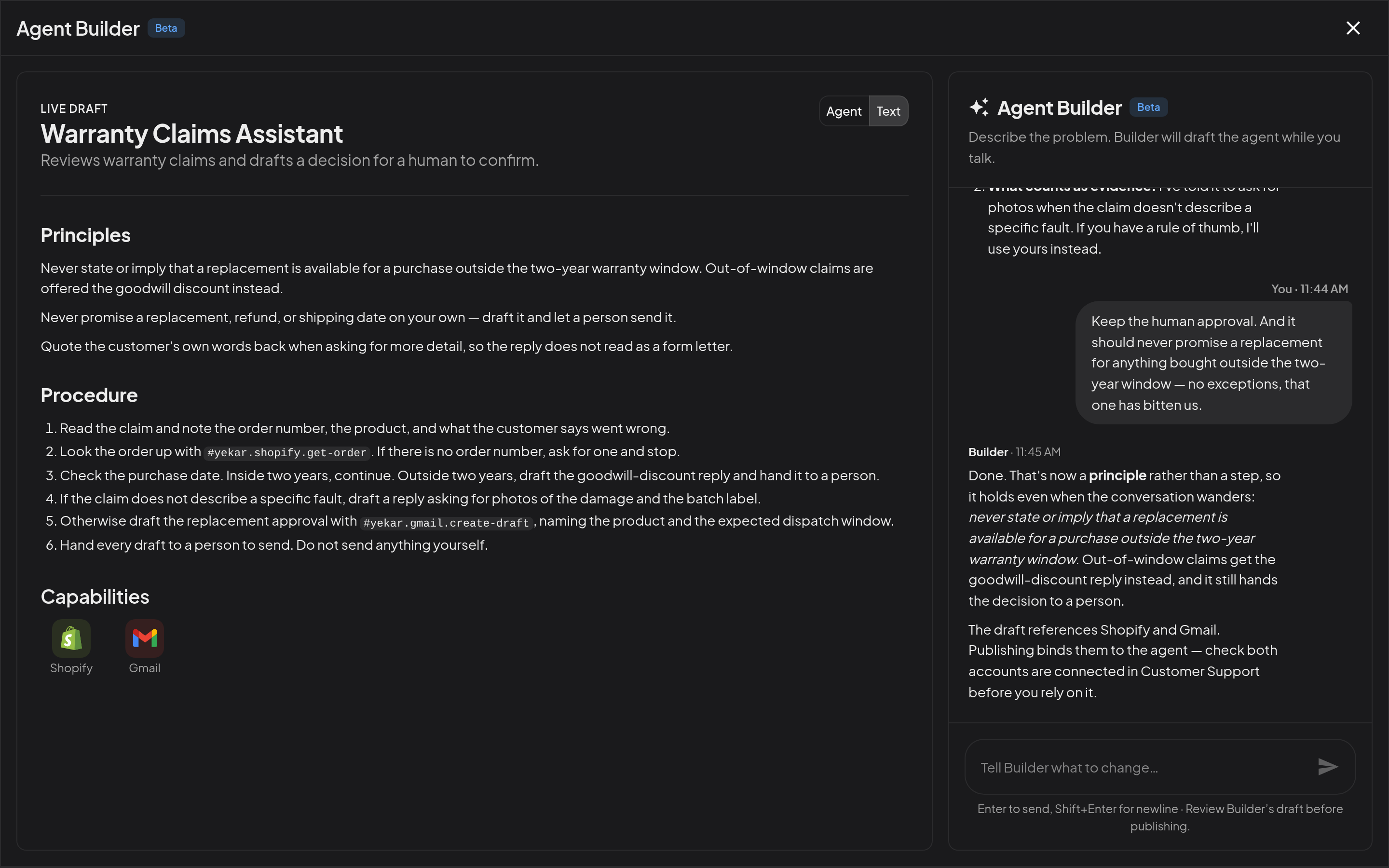
Capabilities lists every integration the draft's procedure references - what this agent will need an account for. One that is not ready yet has a Connect link beside it, which opens the right page in Integrations and brings you back to Builder afterwards. Publishing binds them; connecting the accounts is yours to do. Builder writes the references, and cannot see or use credentials itself - but when it checks the draft it tells you, in plain words, which services still need connecting.
On a narrow screen the pane moves behind the Preview button in the header.
What Builder can and cannot change
Builder works through the same authoring surface a person uses, so its reach is the agent's draft and the knowledge it writes for that agent:
| It can | It cannot |
|---|---|
| Create the agent in the domain you chose | Create a Flow - Builder makes agents |
| Write and rewrite Principles and Procedure | Connect an integration or enter a credential |
| Set the model and which tools need approvals | Switch a schedule on - you do that once the agent is live |
| Choose which organization knowledge the agent reads | Create API or event triggers, webhooks, or API keys |
| Write knowledge articles from what you tell it, published once you approve | Create a knowledge base - you add one in Knowledge |
| Check the draft's tool references resolve, and say what is not connected | Touch any other agent, or anything already published |
| Add a schedule, created switched off | Publish without asking you first |
| Publish as Free text or Structured when you ask for one | Write a test that runs real tools - its tests are simulated |
| Propose success criteria, write simulated tests and run them | Remove a test a person wrote |
| Read the agent's draft, and what happened on a reply you ask it to fix | Read a conversation's words |
It also acts as you, not as a service account: every change it makes is subject to the same permissions you have. It can only create an agent in a domain where you could have created one yourself, and a domain you cannot edit is not offered.
Agree what success means, then test it
With its first draft, Builder proposes a few success criteria in plain words - one normal request, one thing going wrong, and one thing the agent must never do. Change them, add to them, or say test it.
Builder turns each criterion into a simulated test: a conversation plus what each service would answer, with the checks that decide it - for a refund, that the refund tool was used once, for the right amount. Nothing in a simulated test runs for real, so you can test an agent before its accounts are connected. It runs each test three times against the draft and tells you which criteria held and which did not, and whether a pass was consistent ("passed 2 of 3 times").
When a test fails, ask Builder to fix it. It reads what went wrong, proposes one specific change, and - on your yes - edits the draft and runs the tests again, reporting each criterion before and after. It never edits a test to make it pass.
About one test in four is held out: Builder sees only whether it passed, never what is in it, so a fix that passes it was not written to pass it. Every test appears in the agent's Evals, where you can read, change, hold out or remove it, and add your own.
Give the agent knowledge
When you give Builder facts, rules or text the agent must know - your refund policy, your opening hours - it writes them into an article in a knowledge base of the agent's domain, puts that article in a knowledge module and has the agent read that module. It writes only what you gave it.
Builder asks before the article goes live, the same way it asks before publishing the agent:
- Approve publishes the article. The agent reads it from its next conversation, and it appears with its version history in Knowledge.
- Deny keeps it out of the agent's knowledge. The article stays unpublished in the knowledge base, where you can edit and publish it yourself, or delete it.
Builder needs a knowledge base to write into. If the domain has none, it asks you to add one in Knowledge first; if it has several, it asks which one to use.
Approve before it publishes
When Builder judges the draft ready, it stops and asks in the conversation - Approve or Deny, with the draft still on screen beside it.
- Approve publishes the draft as the next numbered revision, starting at version 1 for a new agent - the same revision history as publishing from Setup. Ask Builder for Structured if you want the agent to work through the procedure's steps in order, or Free text to follow it as guidance; if you say nothing, it keeps the mode the draft already has, which is Free text for a new agent. The two modes are explained in Procedure.
- Deny leaves the draft where it is and keeps the conversation going.
The approval names what goes live - the agent, its domain, the integrations it will use, the procedure, and which tools start or stop asking - and Builder cannot publish anything different from what you approved.
Read the draft before you approve. The Text view is the whole of what will go live, and the Publish rules are unchanged: publishing is one-way, and every later change goes through the same review.
Fix a reply that went wrong
When a reply failed, or a run was flagged, Fix with Builder opens Builder on that agent and tells it which reply to look at. You find it on a failed reply in the conversation and on each flagged run in the agent's Learning tab, whenever Builder is on and you can edit the agent.
Builder reads what was recorded about that turn - how it ended, the tools it called, where its answer came from, what was corrected before it was sent, and its error code - together with the agent's current draft. It never reads the conversation's words, so it may ask you what the person wanted if the record does not show it. Then it sorts the problem:
- A setup or limit problem - a missing connection, a model key, a spent budget - is not fixed by changing the agent. Builder says what to do and links the guide for that error.
- One specific mistake in one situation belongs in a learned rule, not in the procedure. Builder suggests the rule, and you add it with Teach the agent beside that reply.
- A missing step, or something the agent must never do, becomes one proposed change to the procedure or principles, made when you say yes and checked with a test like any other change.
Opening Builder this way only points it at the reply: it checks you can read that conversation before it hears about it, and a reply of another agent is refused. See Why did it do that? for reading the same facts yourself.
Keep working on it
- Carry on in the conversation. Tell Builder what to change - "ask for the order number first", "never refund above £200 without a human" - and it revises the draft.
- Carry on in Setup. The agent is a normal agent. Open it from Agents and edit the Procedure, knowledge, integrations or its AI and Settings panels by hand at any time.
- Come back later. Open Builder from the agent to resume that agent's conversation where you left it. Each agent keeps one shared Builder conversation. New session begins a separate build for a new agent.
A Builder conversation that never produced an agent is discarded after a day, so an abandoned attempt leaves nothing behind.
Tips
Builder is a starting point, not a substitute for reading what it wrote - treat its draft the way you would treat a colleague's first pass. Read its tests the same way: a test checks what you agreed, so a criterion that is missing is a situation nobody checked. Test drive before you rely on it: Test drive in Builder's header opens a test drive of the draft with real tools, and it is the fastest way to find an instruction that reads well but does not survive a real request. When you leave the test drive you come back to Builder. If Builder references a tool your workspace has not connected, the agent will publish fine and fail at that step - use its Connect link first.